A gate / expander for individual drum mics. It removes bleed from the rest of the kit and the cymbals so each channel carries only the drum it is aimed at. VST3 / AU / Standalone on Windows and Mac. Zero latency (0 samples) by default.
What's new in 1.0.1
- LEARN works on every drum and stops by itself: once you have hit enough and stop for about 4 seconds, it calculates without another press.
- Threshold set from the real hits: soft hits are no longer cut, and an odd loud bleed does not push it up.
- Tells you when the bleed is too close to the hits: the threshold goes midway and it suggests moving the mic.
- Fixed the gate sometimes staying shut after a quiet passage.
Install
- One-click installer (recommended): Windows: run AutoDrumGate-…-Windows-Setup.exe. Mac: open AutoDrumGate-…-macOS-Installer.pkg (right-click → Open the first time). It puts the plug-in in the right folders and replaces an older version.
- Or install by hand from the zip files:
- Windows (VST3): unzip and copy Auto Drum Gate.vst3 to C:\Program Files\Common Files\VST3\
- Mac (VST3): copy Auto Drum Gate.vst3 to /Library/Audio/Plug-Ins/VST3/
- Mac (AU): copy Auto Drum Gate.component to /Library/Audio/Plug-Ins/Components/
- Mac (first time after installing): open Terminal, paste the command below and enter your Mac password when asked, so macOS allows the downloaded plug-in. Then reopen your DAW.
- Rescan plug-ins in your DAW (or Signal Rack). It is listed under Dynamics, maker T Sound Man.
Quick start in 5 steps
- Put it first on the drum mic channel, before EQ and compression.
- Press the drum button that matches the mic (KICK IN, SNARE TOP, TOM 1 ...). The Natural Live preset for that drum loads.
- The orange "Threshold not calibrated - press LEARN" is expected: presets never set the threshold, because every show has different levels.
- Press LEARN and follow the steps below, or turn THRESHOLD until the dashed cyan line sits above the bleed but below the drum hits.
- Listen and set HOLD / RELEASE so tails end naturally. If tails sound chopped, lower RANGE first.
Display and meters
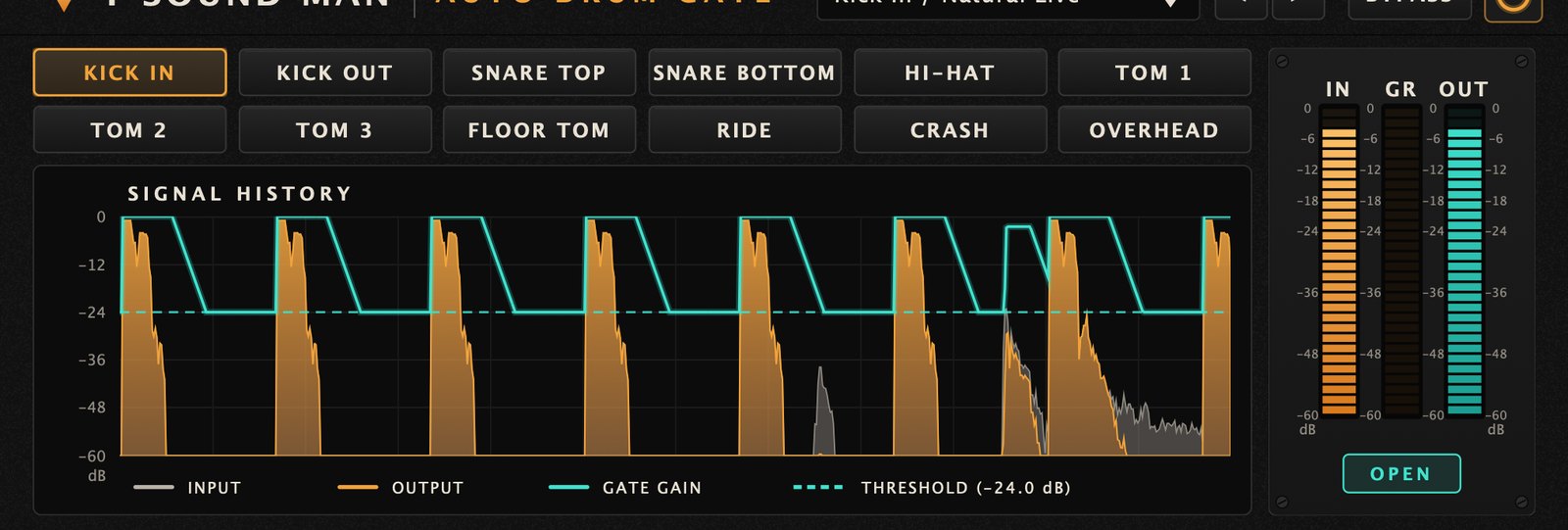
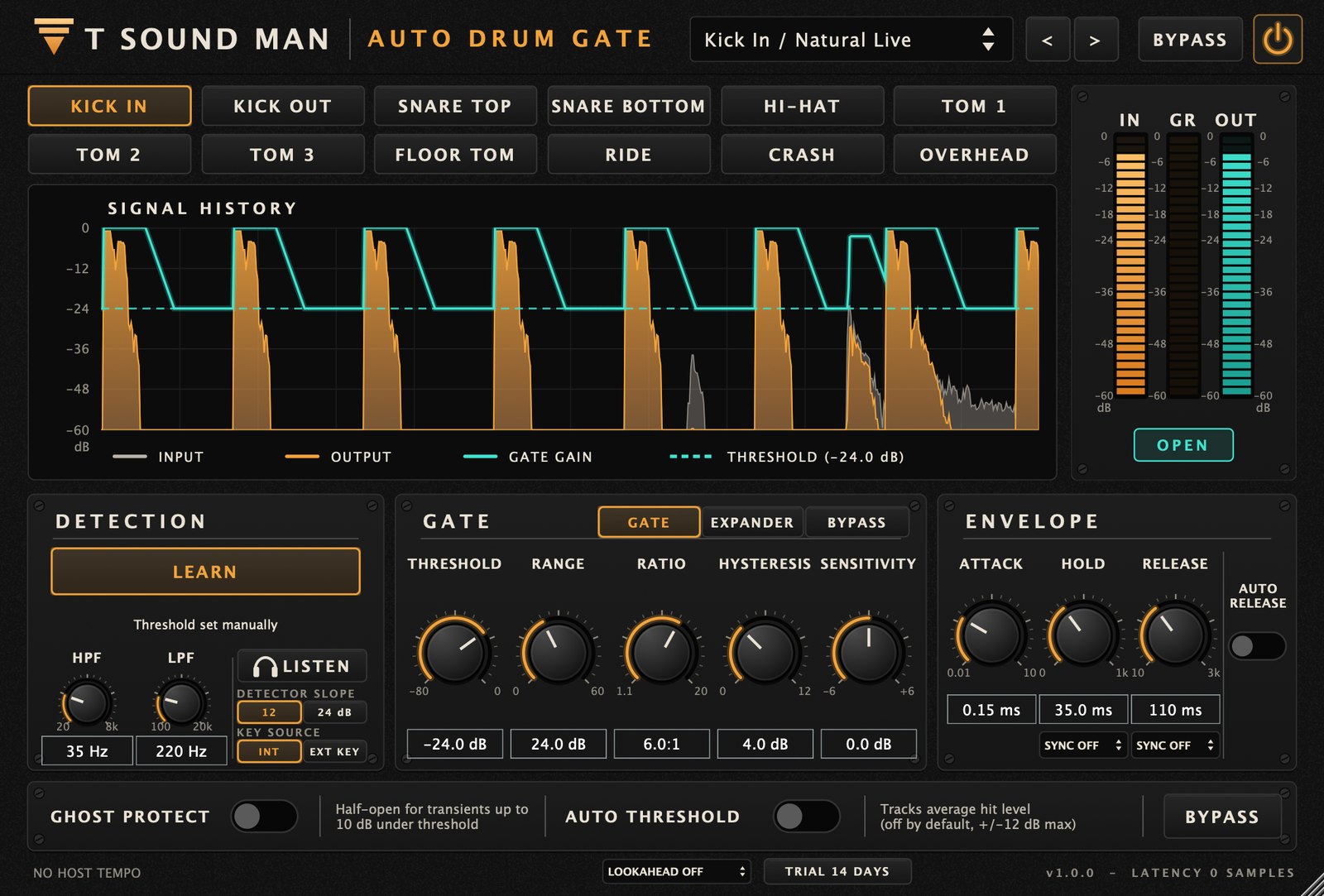
- Top bar — the 32 presets, < >, BYPASS (20 ms fade, no click) and the power button.
- 12 drum buttons — KICK IN, KICK OUT, SNARE TOP, SNARE BOTTOM, HI-HAT, TOM 1–3, FLOOR TOM, RIDE, CRASH, OVERHEAD.
- SIGNAL HISTORY — about 3.6 s. Grey = input, orange = output, solid cyan = gate gain, dashed cyan = the threshold actually in use.
- IN / GR / OUT meters — input level, dB of gain reduction and output level. OPEN / CLOSED shows the gate state.
Controls
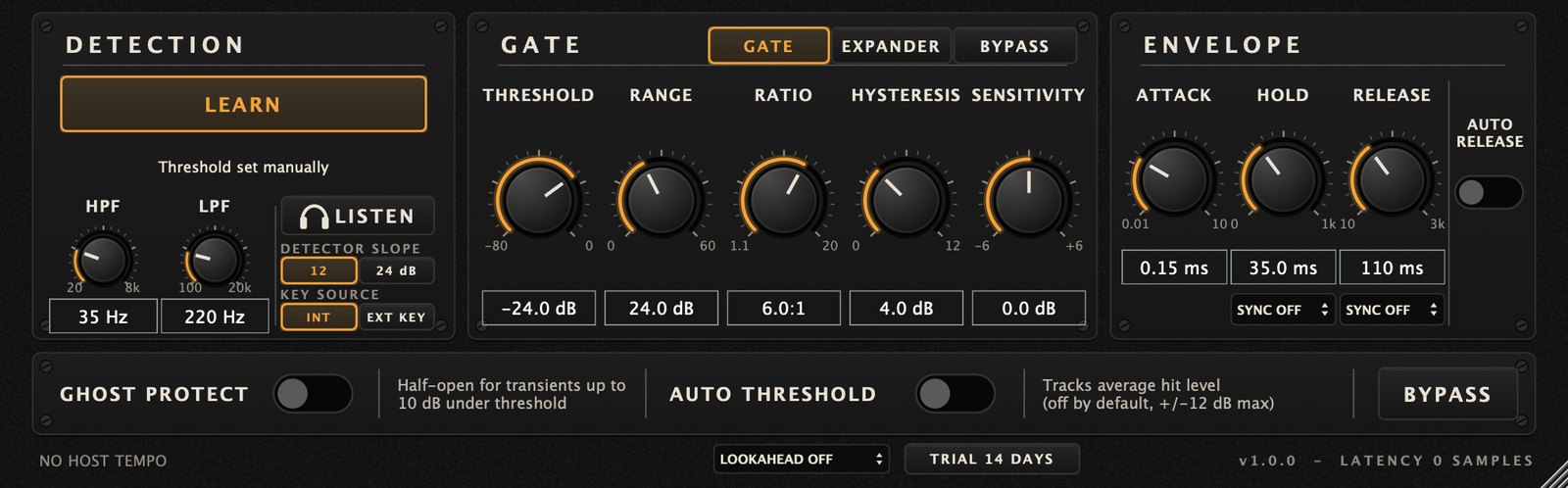
- LEARN — sets the threshold from real audio.
- HPF / LPF — the band the detector listens to. They do not change the output sound; they make the gate open only for the target drum.
- LISTEN — hear what the detector hears while tuning HPF/LPF. Turn it off before the show.
- DETECTOR SLOPE 12 / 24 dB — detector filter steepness.
- KEY SOURCE INT / EXT KEY — detect from this channel or from the sidechain.
- GATE / EXPANDER / BYPASS — GATE for kick and toms, EXPANDER (gentler) for snare and cymbals.
- THRESHOLD −80 to 0 dB, RANGE 0–60 dB (maximum reduction), RATIO 1.1:1 to 20:1.
- HYSTERESIS 0–12 dB — stops chattering when a tail hovers at the threshold.
- SENSITIVITY −6 to +6 dB — fine threshold offset.
- ATTACK / HOLD / RELEASE — open, hold and close times. Hold / Release can sync to the host tempo (SYNC).
- AUTO RELEASE — follows each hit's real decay within the limits set for that drum.
- GHOST PROTECT — ghost notes up to 10 dB under the threshold open the gate half-way (on for snare presets).
- AUTO THRESHOLD — follows the average hit level, ±12 dB max (off by default).
- LOOKAHEAD Off / 0.5 / 1 / 2 ms — lets the gate open before the transient, at the cost of latency that is reported to the host. Off is recommended live.
- TRIAL / LICENSED badge (footer) — trial days left; click to enter a licence key.
LEARN
Set the preamp gain first and do not change it during LEARN. Choose the right drum button first.
- Press LEARN. The button shows "1/2 BLEED ONLY": let the band play or hit other drums, not the target drum, for 4 seconds.
- The button shows "2/2 HITS: n / 20": hit the target drum 12–20 times, soft, medium and hard, leaving the sound time to decay between hits.
- LEARN finishes by itself, no second press needed: at 20 hits, or after at least 8 hits followed by about 4 seconds without one, or at 30 seconds. (You can still press LEARN to finish early.)
The result reads, for example, "Learned: open −31.2 / close −36.2 dB (N −51.0, S −7.2, 14 hits)". N is the bleed level and S the level of this drum's soft hits. The threshold goes above the bleed but at least 6 dB under the soft hits, so they are never cut.
- If the hits are only 5–9 dB above the bleed you get a warning and the threshold is set midway: it works, but move the mic closer.
- If LEARN heard almost no bleed (a quiet room), the threshold comes from the hits alone; LEARN again while the band plays.
"Insufficient separation" (hits less than 5 dB above the bleed; the threshold is left unchanged) means the bleed is as loud as the soft hits: move the mic closer, adjust HPF/LPF, use 24 dB/oct, or use Expander mode with a low Range. "Only n hits detected": hit harder or leave more space between hits.
Presets
- Natural Live (12) — the live default, natural sound.
- Tight (6: kick, toms) — shorter hold/release and more range for a tighter sound.
- Soft / Brushes (12) — quiet songs, jazz, brushes; gentle expansion.
- Keyed (2) — Kick Out keyed from Kick In, Snare Bottom keyed from Snare Top (route that channel to the plug-in's sidechain; otherwise "EXT KEY: NO SIDECHAIN CONNECTED" is shown).
Licence and trial
Fully working 14-day trial. When it ends without a licence the gate passes audio straight through (like BYPASS), so a show never goes silent. Buy a licence at tsoundman.com, click the TRIAL badge in the footer, paste the key (starts with FK2-) and press Activate.
If activation fails
- The licence window has Paste code from clipboard (pastes the key you copied) and Load key file... (reads the key from a .txt file). Both work even in hosts that block Ctrl+V / Cmd+V or right-click Paste inside plug-ins.
- Spaces and hidden characters that LINE or e-mail add to a copied key are removed automatically. Result messages always stay on top, so they never hide behind the host window.
- No licence code — the key box was empty. Copy the key again and click Paste code from clipboard, or save the key in a text file and use Load key file...
- Could not connect to the licence server — check the internet connection, then update to the latest version from the product page or My library. New versions activate through tsoundman.com, which every network can reach.
- Invalid licence code — the key must start with FK2- and belong to this product (a key for one product does not work in another). If it still fails, send a screenshot on LINE and we will check it or issue a new key.