An AI feedback suppressor for vocal and speech mics (VST3 on Windows and Mac, AU on Mac). It has one button: switch it on and the AI does the rest. It cuts the howls, keeps the notches off the voice itself and takes out the unwanted lows. The AUTO NOISE switch also turns down the stage bleed and noise whenever nobody is singing. Nothing adds latency (zero latency).
Install
- Windows: double-click FeedbackKillerAI-1.0.0-Windows-Setup.exe. It installs Feedback Killer AI.vst3 into C:\Program Files\Common Files\VST3\.
- Mac: double-click FeedbackKillerAI-1.0.0-macOS-Installer.pkg. It installs both the VST3 and the AU (for Logic Pro, GarageBand and MainStage).
- Mac, first time after installing:
- If macOS will not open the installer, right-click it and choose Open.
- If the plug-in does not show up in your DAW, open Terminal, paste the command below and enter your Mac password.
- Rescan plug-ins in your DAW (or Signal Rack). Maker: T Sound Man.
sudo xattr -dr com.apple.quarantine "/Library/Audio/Plug-Ins/VST3/Feedback Killer AI.vst3" "/Library/Audio/Plug-Ins/Components/Feedback Killer AI.component"
What is on the screen
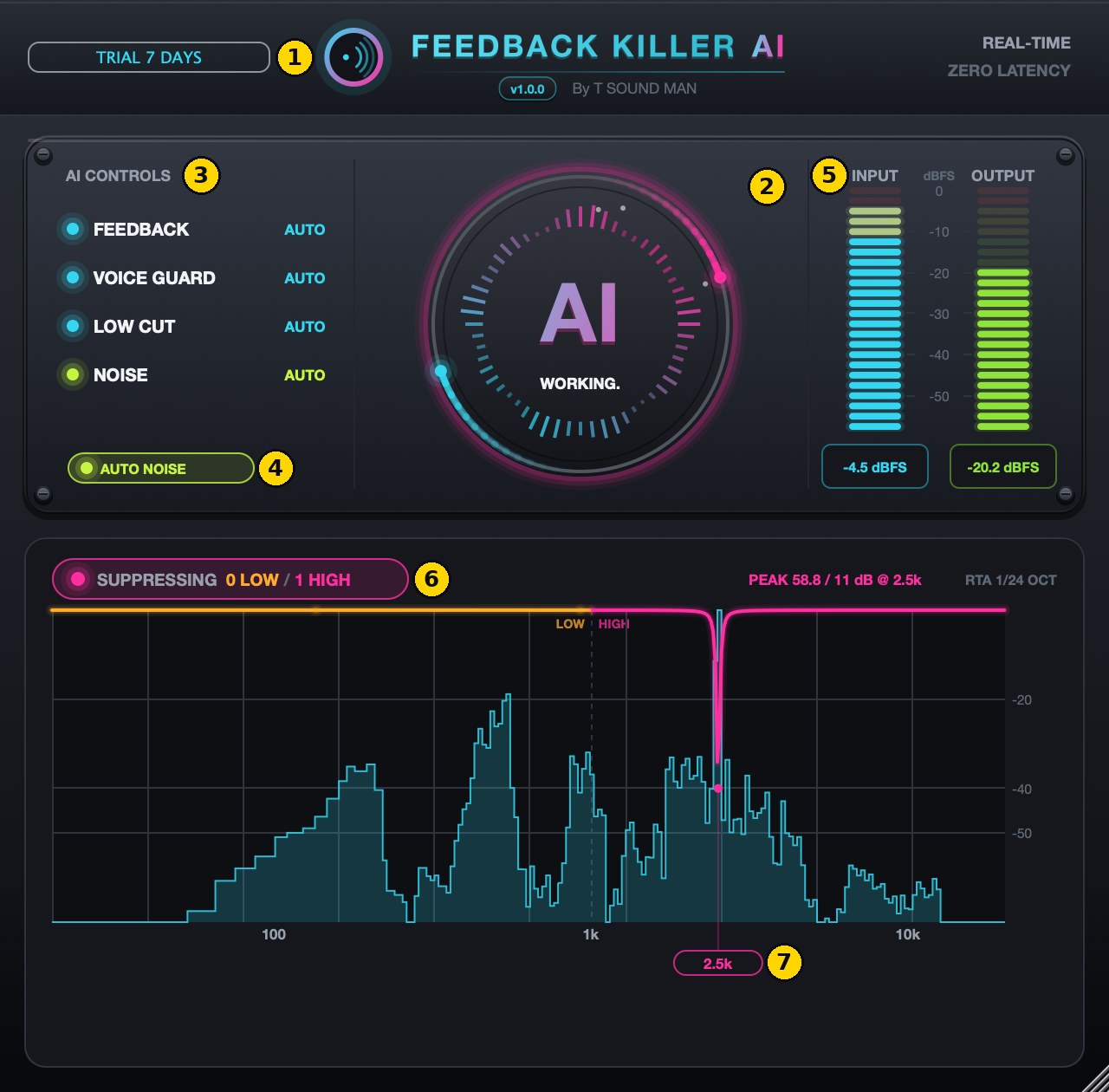
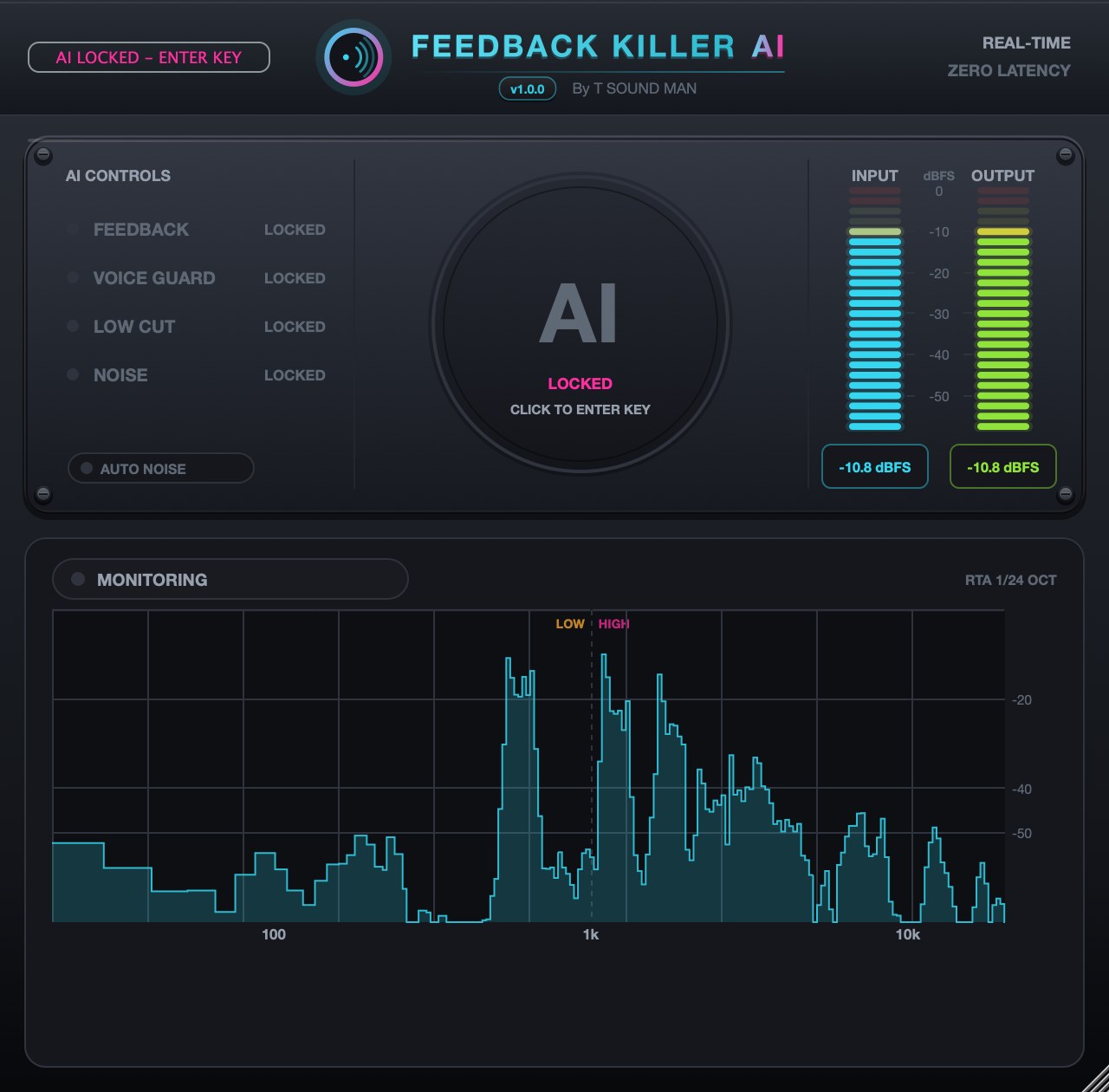
- Licence badge. Shows TRIAL (days left) or LICENSED. After the trial it reads AI LOCKED - ENTER KEY. Click it to enter a licence key.
- AI button. The one control: click it to switch the AI on or off.
- While the AI works, a ring turns and the button reads WORKING.
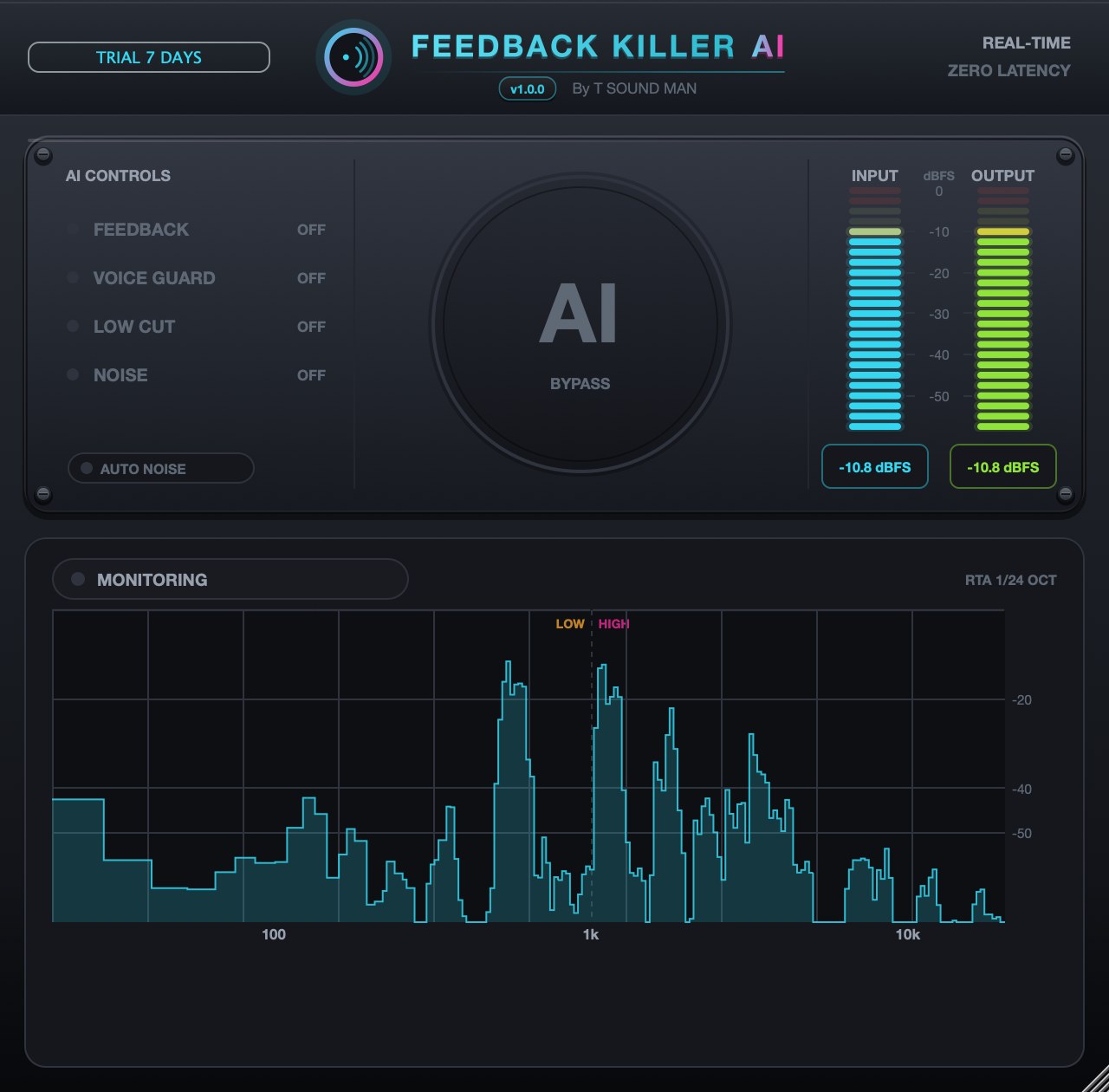
- When it is off, the button reads BYPASS and the audio passes straight through.
- A new instance always opens with the AI off.
- AI CONTROLS. What the AI is running:
- FEEDBACK: howl suppression.
- VOICE GUARD: keeps notches off the voice.
- LOW CUT: takes out the unwanted lows.
- NOISE: how many dB AUTO NOISE is taking out right now.
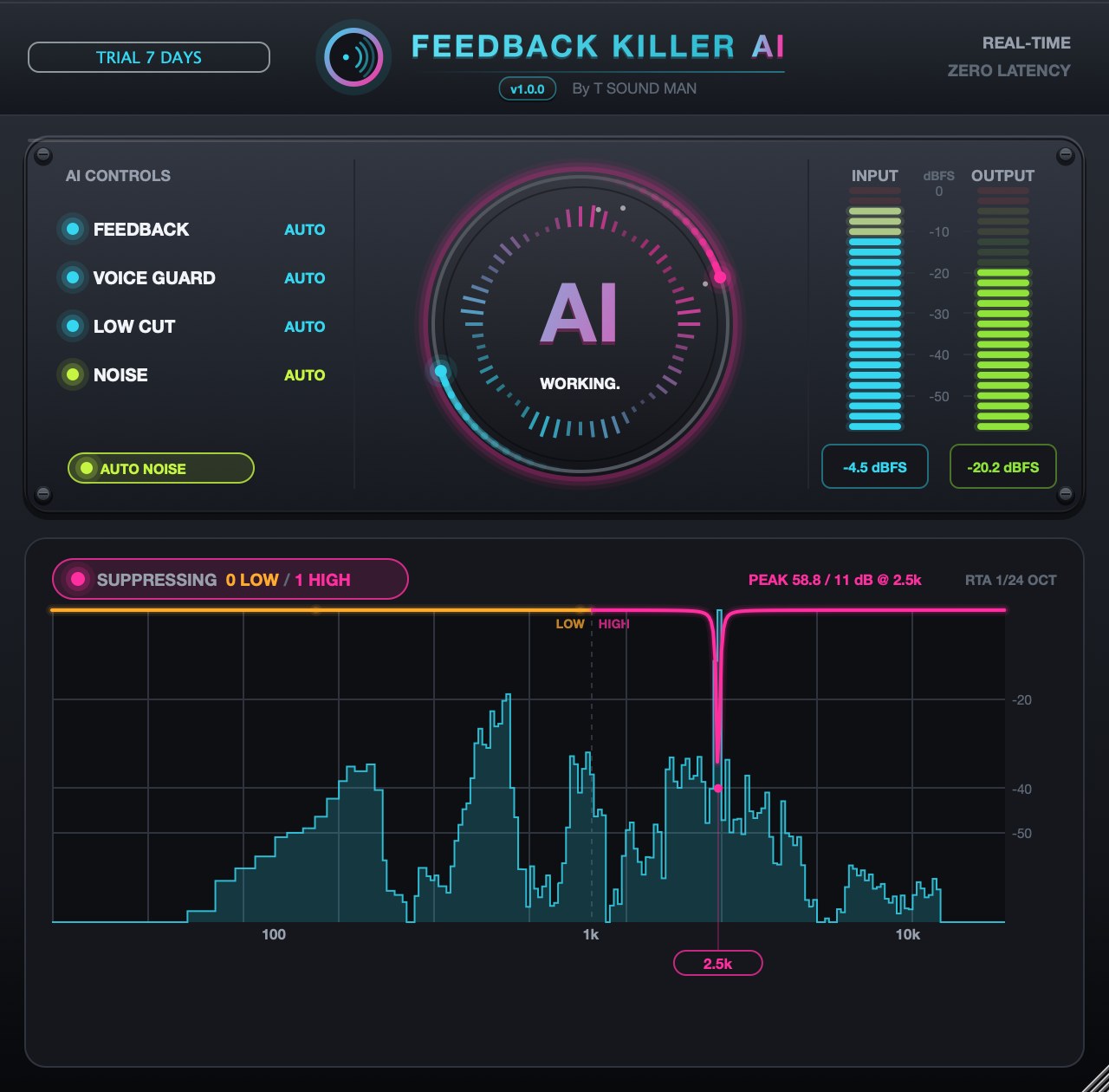
- AUTO NOISE. The switch for stage-bleed and noise reduction (see below). It starts off.
- INPUT / OUTPUT. Level meters before and after the plug-in.
- Suppression status. SUPPRESSING shows how many frequencies are being notched in the LOW and HIGH ranges. With no howl it reads MONITORING.
- RTA and notch markers. Orange markers are the low range, pink the high range. The figures below the graph are the frequencies being cut, in up to three rows.
Getting started
- Install the plug-in and rescan plug-ins in your DAW.
- Put Feedback Killer AI early in the vocal or speech mic's insert chain, before EQ and compression.
- Click the AI button. The ring starts turning and it reads WORKING.
- Bring the system up as usual. When a frequency starts to howl, the AI cuts it at once, but it leaves alone the note the singer is holding.
- If a lot of music or noise gets into the mic, switch on AUTO NOISE.
What AUTO NOISE does
- While someone sings or speaks, it barely touches the sound: every band stays within 0.5 dB. The voice masks the bleed anyway, so the voice stays natural, with no robotic artefacts.
- When nobody sings, the AI turns down everything that is not a voice: the band bleeding into the mic, fans, air-con, hum, hiss. Pauses between phrases become much quieter.
- When the singer comes back in, a fast opener lets the sound through within a fraction of a second, so the first word is not lost.
- Every kind of voice is kept: lead, backing vocals and speech.
- After you switch AUTO NOISE on, it takes about 3 seconds to learn the room's noise. Only then does it reduce fully.
- It works best when the singer is much louder in the mic than the bleed. If the bleed is nearly as loud as the voice (less than 10 dB below it), the very start of a phrase can come out slightly quieter.
Tips for live use
- Use it on vocal and speech mics only. The AI is trained to recognise the human voice. For instruments, use the standard Feedback Killer.
- It only cuts the narrow frequencies that howl, so the overall sound does not thin out. You can leave it on for the whole show.
- Before the show, ring out the room. Bring the mic up a little hotter than usual so the AI catches the room's howl points.
- Resize the window by dragging its bottom-right corner.
Trial and licence
- Free 7-day trial with every feature. The badge shows the days left. The trial is counted separately from the standard Feedback Killer.
- After 7 days the AI locks (the button reads LOCKED), but the audio keeps passing through; it never goes silent mid-show.
- To activate after buying:
- Click the badge or the AI button.
- Paste the key that starts with FK2-.
- Click Activate. It needs the internet once.
One key works on 2 computers.
- A standard Feedback Killer key does not unlock the AI version. They are separate products.
If activation fails
- The licence window has Paste code from clipboard (pastes the key you copied) and Load key file... (reads the key from a .txt file). Both work even in hosts that block Ctrl+V / Cmd+V or right-click Paste inside plug-ins.
- Spaces and hidden characters that LINE or e-mail add to a copied key are removed automatically. Result messages always stay on top, so they never hide behind the host window.
- No licence code — the key box was empty. Copy the key again and click Paste code from clipboard, or save the key in a text file and use Load key file...
- Could not connect to the licence server — check the internet connection, then update to the latest version from the product page or My library. New versions activate through tsoundman.com, which every network can reach.
- Invalid licence code — the key must start with FK2- and belong to this product (a key for one product does not work in another). If it still fails, send a screenshot on LINE and we will check it or issue a new key.