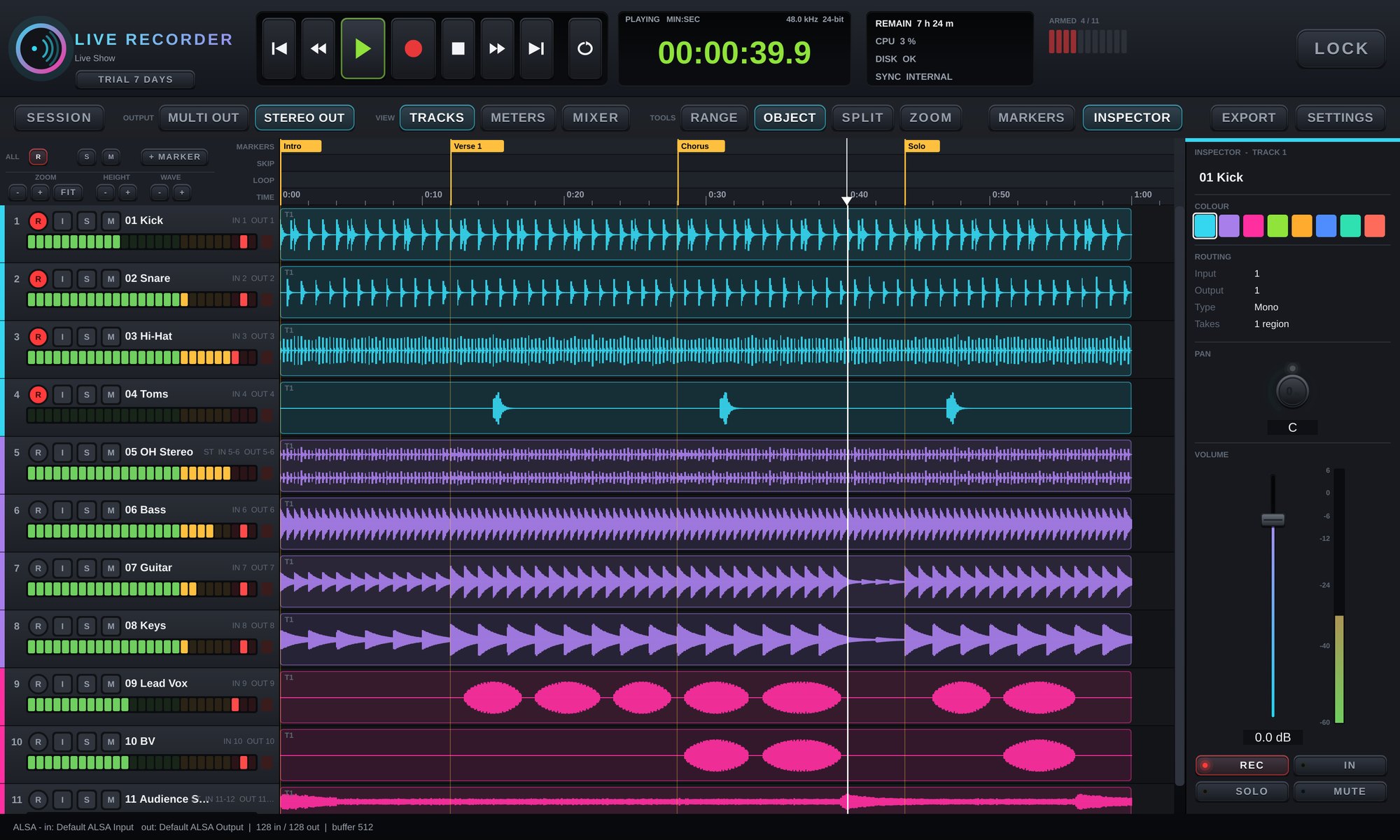
A multitrack recorder for live shows on Windows and Mac. Record up to 128 tracks at once from any audio interface (ASIO / Core Audio), then play them back out of the same channels into the console for a virtual soundcheck. Basic editing is built in, and a show can be exported as a WAV / MP3 mixdown or handed to a DAW as a DAWproject.
First use
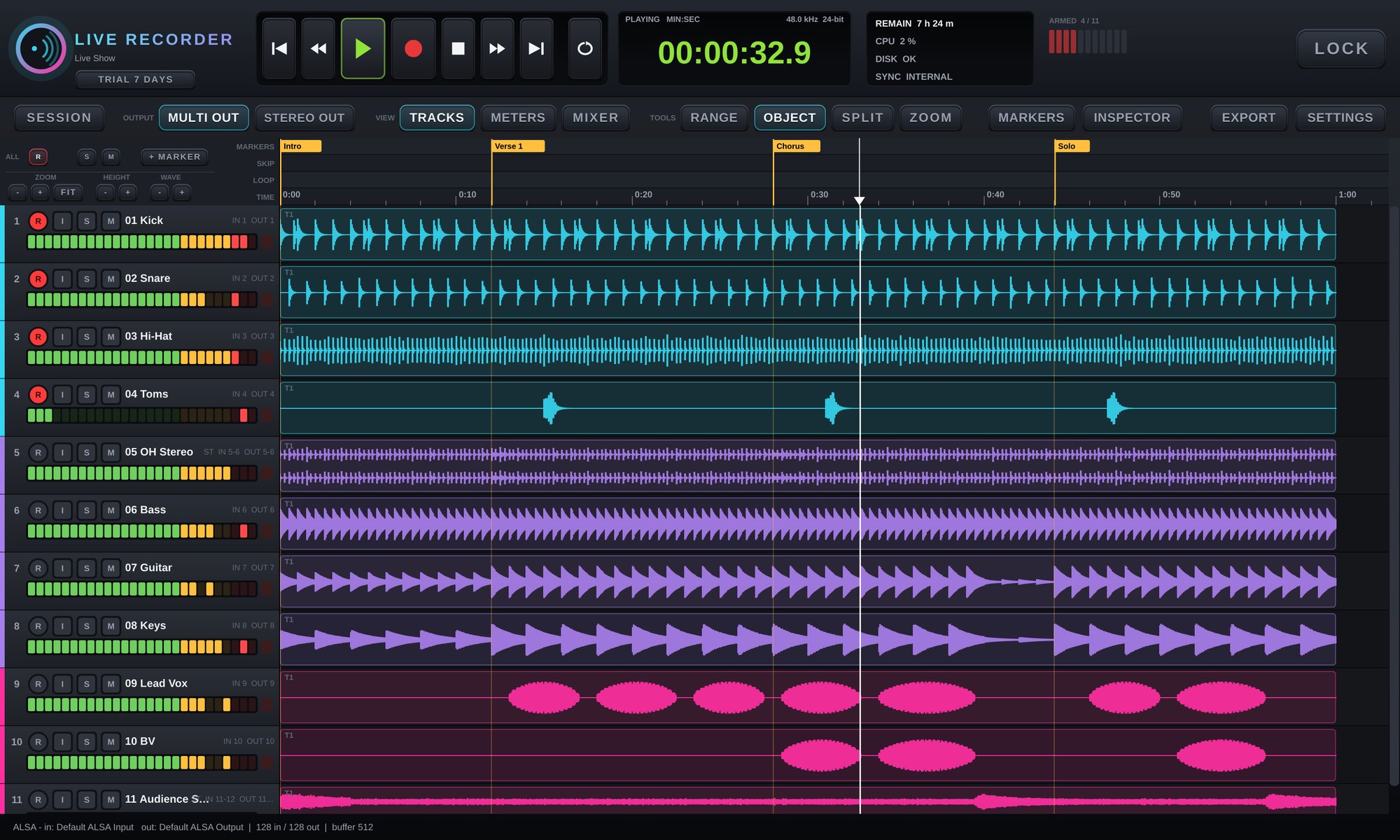
- Open the app. The SESSION window comes up first, and no audio interface is opened yet.
- Click SYSTEM SETTINGS... and choose your audio interface on the AUDIO SYSTEM tab (on Windows pick its ASIO driver for the lowest latency). Set the sample rate and buffer (512 is a good start).
- Name the show and click CREATE NEW SESSION. The session gets one track per input of the interface.
- Press R on the tracks to record (or R on the ALL row for every track), then press record (the red circle).
- Press stop at the end. Every track is written to WAV in the session folder while it records; after a power cut or a crash, open the session again and the takes that were being recorded come back by themselves.
Top bar
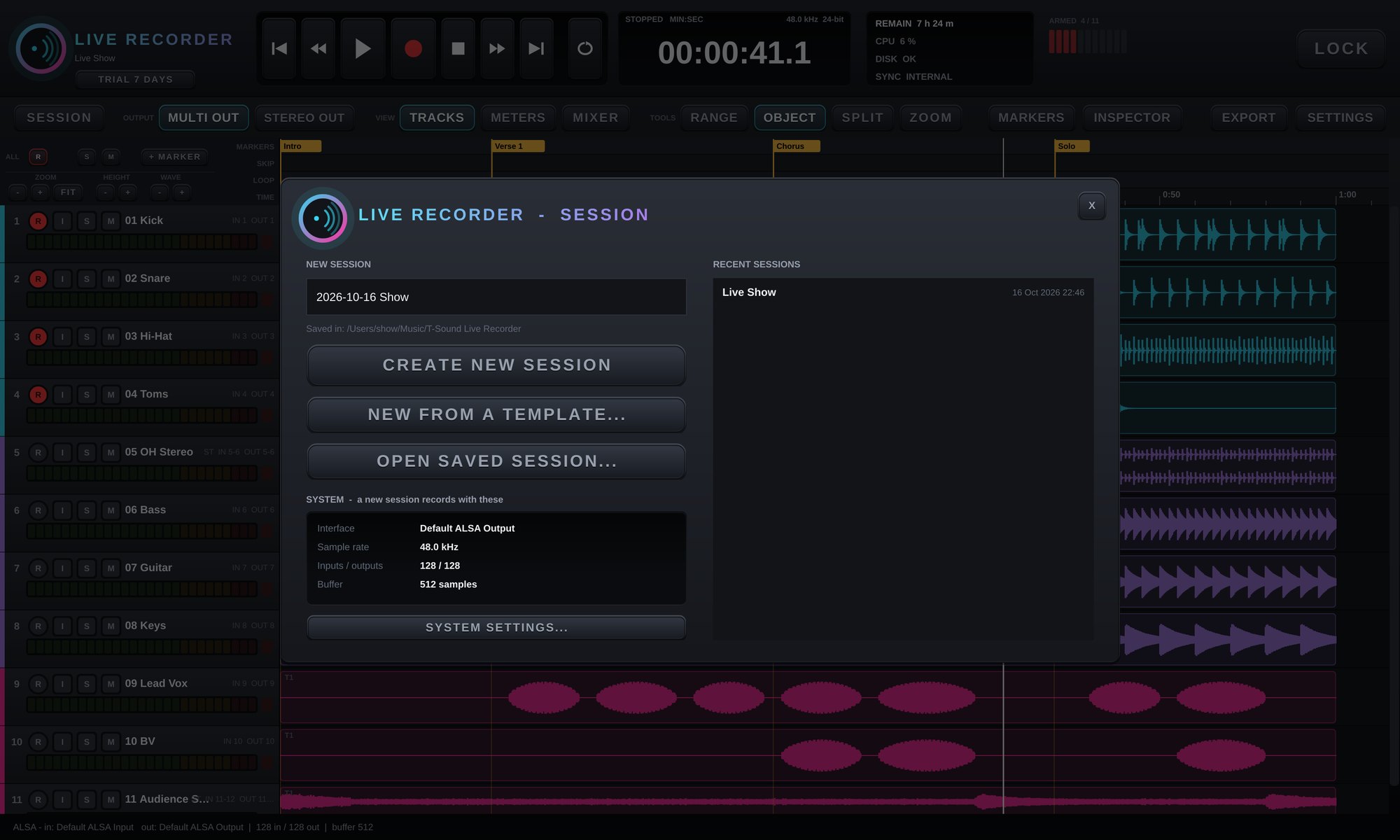
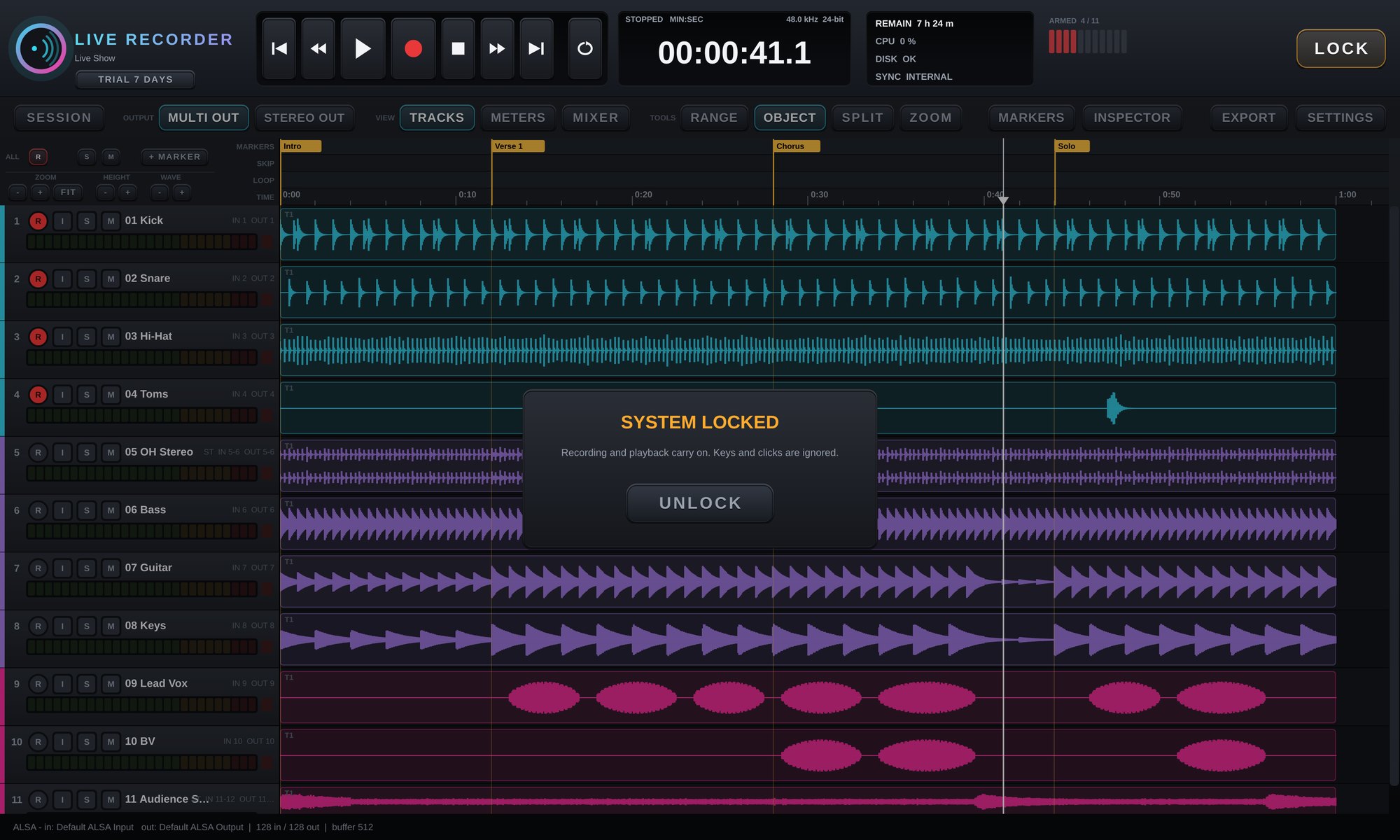
- Transport — previous marker, rewind, play, record, stop, fast forward, next marker and LOOP (play the loop range over and over).
- Clock — click to switch between min:sec, timecode and samples. Above it: the state, sample rate and bit depth.
- REMAIN / CPU / DISK / SYNC — recording time left on the disk, CPU load, disk writing (DROPOUTS or WRITE ERROR means check the drive) and the sync source.
- ARMED — every track at a glance; red cells will record. Click a cell to arm or disarm its track.
- LOCK — locks the window during a recording so no click or key can stop it; UNLOCK releases it (it can lock by itself after recording starts, see SETTINGS).
- TRIAL / LICENSED badge — days of trial left; click it to enter a licence key.
Toolbar
- SESSION — new session, open a session, save as a template, recent sessions.
- OUTPUT: MULTI OUT / STEREO OUT — MULTI OUT sends each track straight to its own output (virtual soundcheck through the console). STEREO OUT mixes every track to a stereo pair for monitoring or a rough mix.
- VIEW: TRACKS / METERS / MIXER — the timeline, a meter for every track, and the mixer (for STEREO OUT).
- TOOLS — RANGE (1) selects a time range, OBJECT (2) selects, moves and trims regions and drags their fades, SPLIT (3) cuts a region where you click, ZOOM (4) zooms to a dragged area.
- SHOW: MARKERS / INSPECTOR — the marker list and the selected track's settings.
- EXPORT — a mixdown file or a DAWproject.
- SETTINGS — audio interface, session, preferences, sync and MIDI.
Tracks
- R record (Ctrl/Cmd-click = record safe, so it cannot be armed by accident), I hear the live input, S solo, M mute.
- Double-click a name to rename it (Tab moves to the next track). Drag a track header up or down to reorder.
- Right-click a header for its input / output, colour, stereo / mono and safe modes.
- Rulers: MARKERS (+ MARKER or M adds one at the play head; drag to move), SKIP (drag a range that playback jumps over), LOOP (the loop range) and TIME (click to locate, double-click to play from there).
- ZOOM / HEIGHT / WAVE at the top left zoom in time, change the track height and enlarge the waveform.
- Every edit can be undone with Ctrl/Cmd+Z.
METERS
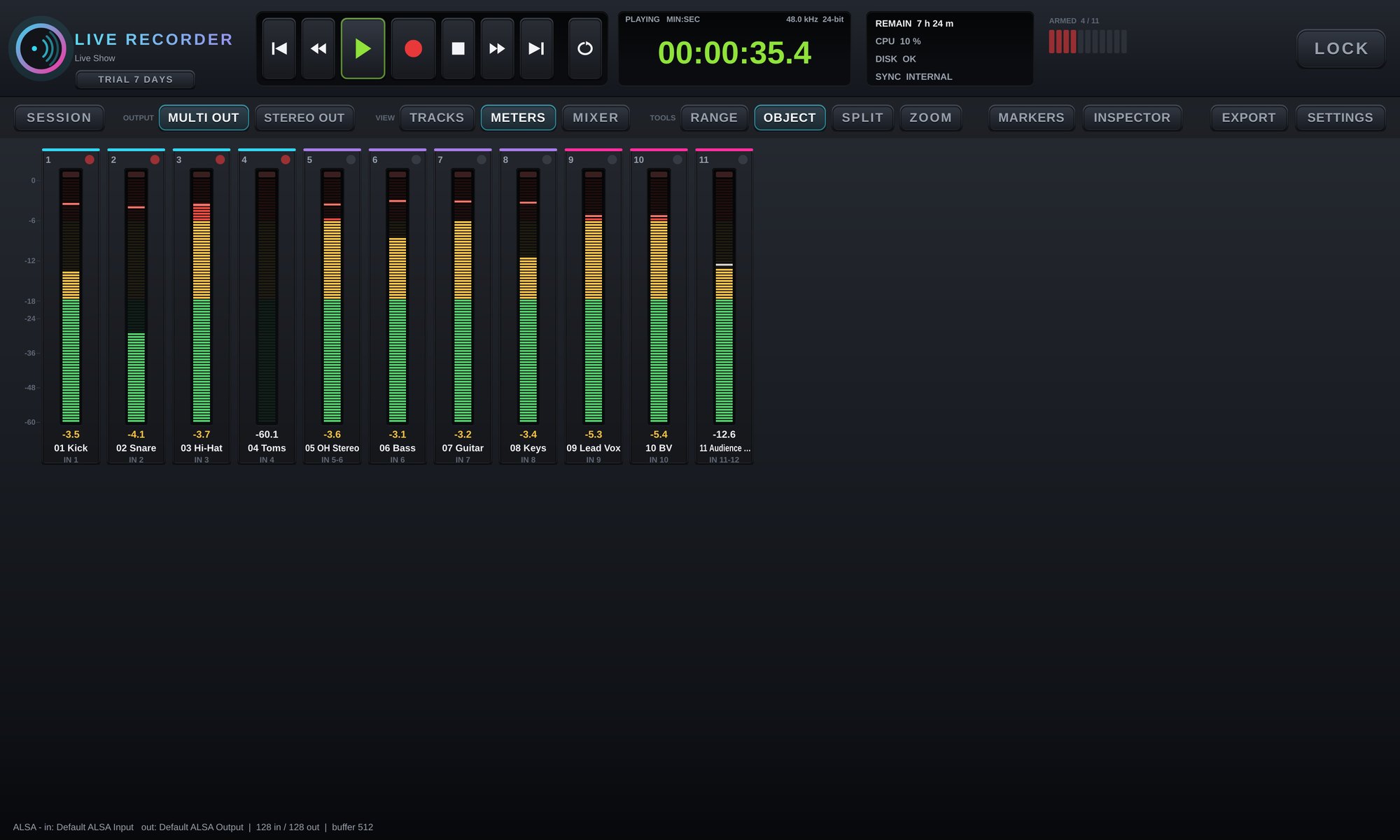
A meter bridge for every track: dB scale, peak hold, the highest peak in dB (click a track to reset it), a clip light and the record light. The rows are as tall as the window allows for the number of tracks.
Mixer and Inspector
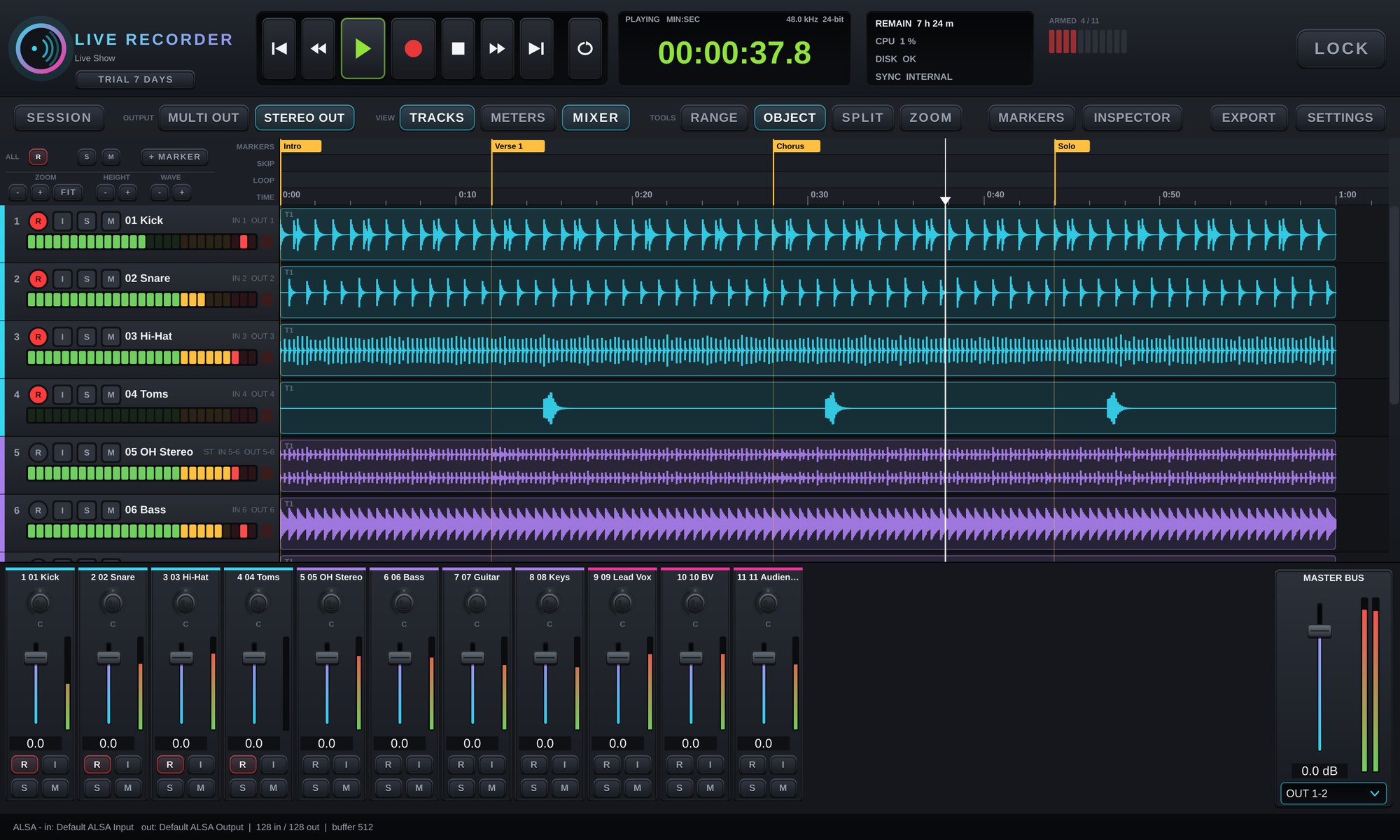
With STEREO OUT, the mixer sets each track's fader, pan, solo and mute for listening or for a mixdown. The INSPECTOR shows the selected track: name, colour, routing, mono / stereo, pan and volume.
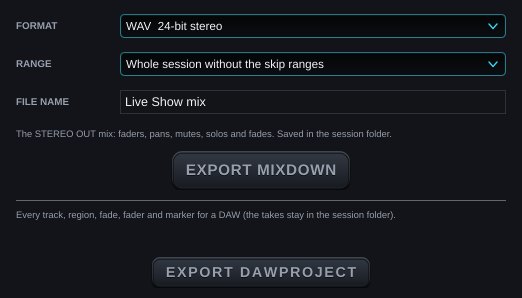
EXPORT
- EXPORT MIXDOWN — the STEREO OUT mix to one file: WAV 24-bit or MP3 320 / 192 / 128 kbps, for the selection, the loop range, the whole session, or the whole session without the SKIP ranges.
- EXPORT DAWPROJECT — the whole session (every track, region, fade, fader, pan and marker) as a .dawproject file for Bitwig Studio, Studio One, Cubase and other DAWs that read it. The audio stays in the session folder; move the whole folder if you move it.
- Every take is a BWF WAV (with its timestamp) in the session folder, ready to drag into any DAW.
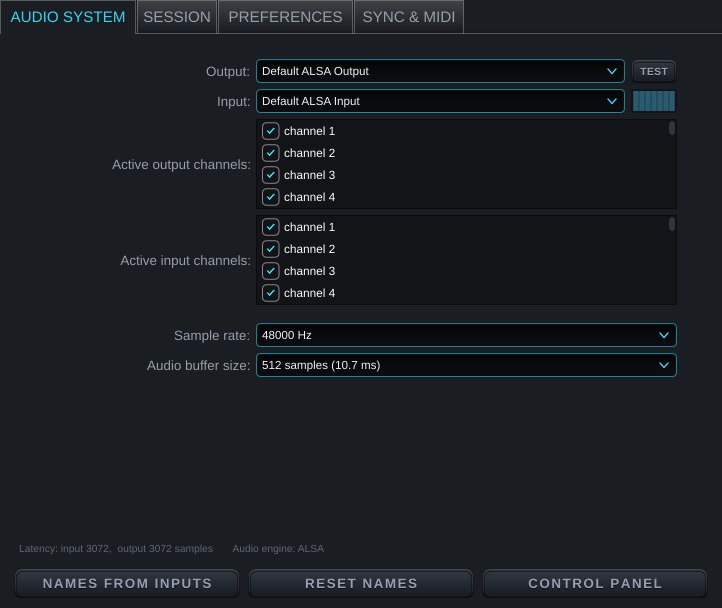
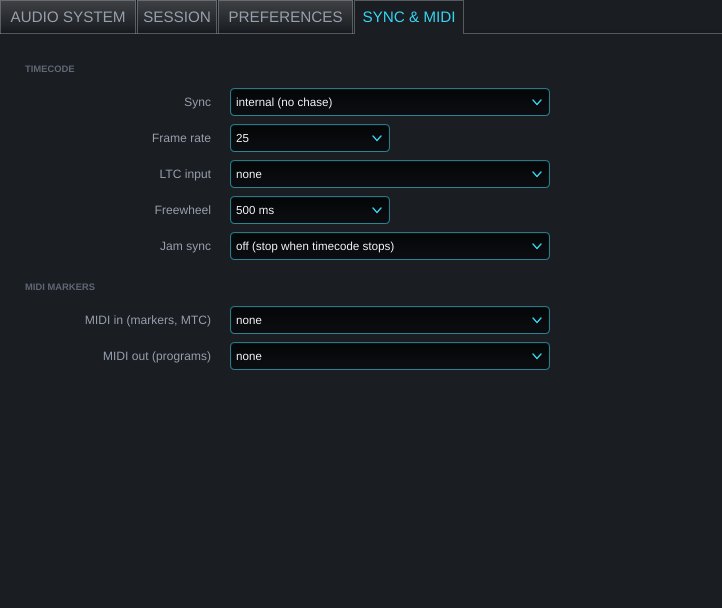
SETTINGS
- AUDIO SYSTEM — audio interface, sample rate, buffer and the inputs / outputs in use.
- SESSION — sessions folder, recording format (16 / 24 / 32-bit float) and the timecode at 0:00.
- PREFERENCES — auto lock after recording starts, meter release, drive buffer (8 s for a USB drive), record latch (PLAY records the armed tracks) and the MP3 encoder (built in; nothing to set).
- SYNC & MIDI — chase LTC (from an input) or MTC timecode. MIDI program changes: while recording each one places a marker (a console scene change, for example); when stopped it locates to that marker; markers with a program change send it when playback reaches them.
Keyboard shortcuts
- Space play / stop · Home / End start / end of the session · M or Insert add a marker · L loop on / off
- 1 / 2 / 3 / 4 tools · E split the selected regions at the play head · + / − zoom
- Ctrl/Cmd + Z / Y undo / redo · Ctrl/Cmd + C / X / V copy, cut, paste · Delete remove the selection · Ctrl/Cmd + S save
LOCK during a recording
Trial and licence
- Every feature works for 7 days; the badge at the top left shows the days left.
- After 7 days a new recording cannot start, but playback, editing and export of your sessions keep working, and a recording that is running is never stopped.
- After buying, click the TRIAL badge, paste the key (it starts with FK2-) and click Activate. The first activation needs the internet, once. One key works on 1 computer.
If activation fails
- The licence window has Paste code from clipboard and Load key file... (reads the key from a .txt file). Spaces and hidden characters that come with a copied key are removed automatically.
- Could not connect to the licence server — check the internet connection and try again.
- Invalid licence code — the key must start with FK2- and be a T-Sound Live Recorder key. If it still fails, send a screenshot on LINE.
MP3 export uses the LAME 3.100 encoder (LGPL), included as a separate program. Its notice and source details are in LAME-README and LAME-COPYING in the app folder.