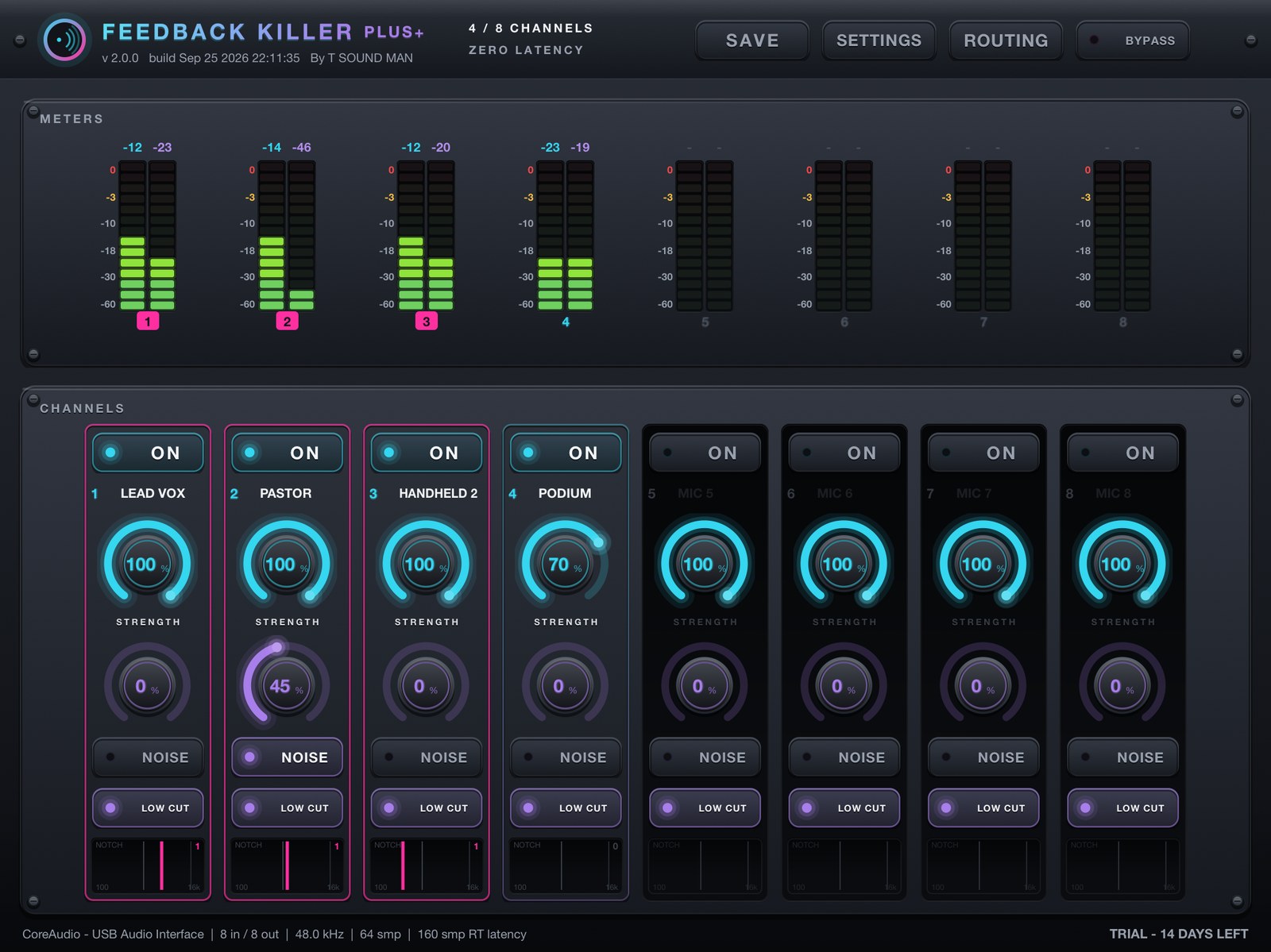
The iPad edition of FeedbackKiller Plus+ runs entirely on the iPad — no computer needed. It takes audio from a USB audio interface, suppresses feedback on up to 8 channels and sends it back out through the interface. It looks and works exactly like FeedbackKiller Plus+ on Mac/Windows; the only differences are that there is no REMOTE button and the switches are larger for fingers.
What you need
- An iPad running iPadOS 16 or later.
- A class-compliant USB audio interface (works on iPad without drivers). For all 8 channels it needs at least 8 inputs and 8 outputs.
- A powered USB-C hub so the iPad and the interface both get enough power.
- Avoid Bluetooth headphones or speakers: the latency is high and iPadOS may reroute the audio on its own.
Connections
- Mixer or mics → inputs of the USB audio interface.
- Interface → powered USB-C hub → iPad.
- Interface outputs → back to the mixer or PA.
Getting started
- Connect the interface first, then open FeedbackKiller Plus+ Pad.
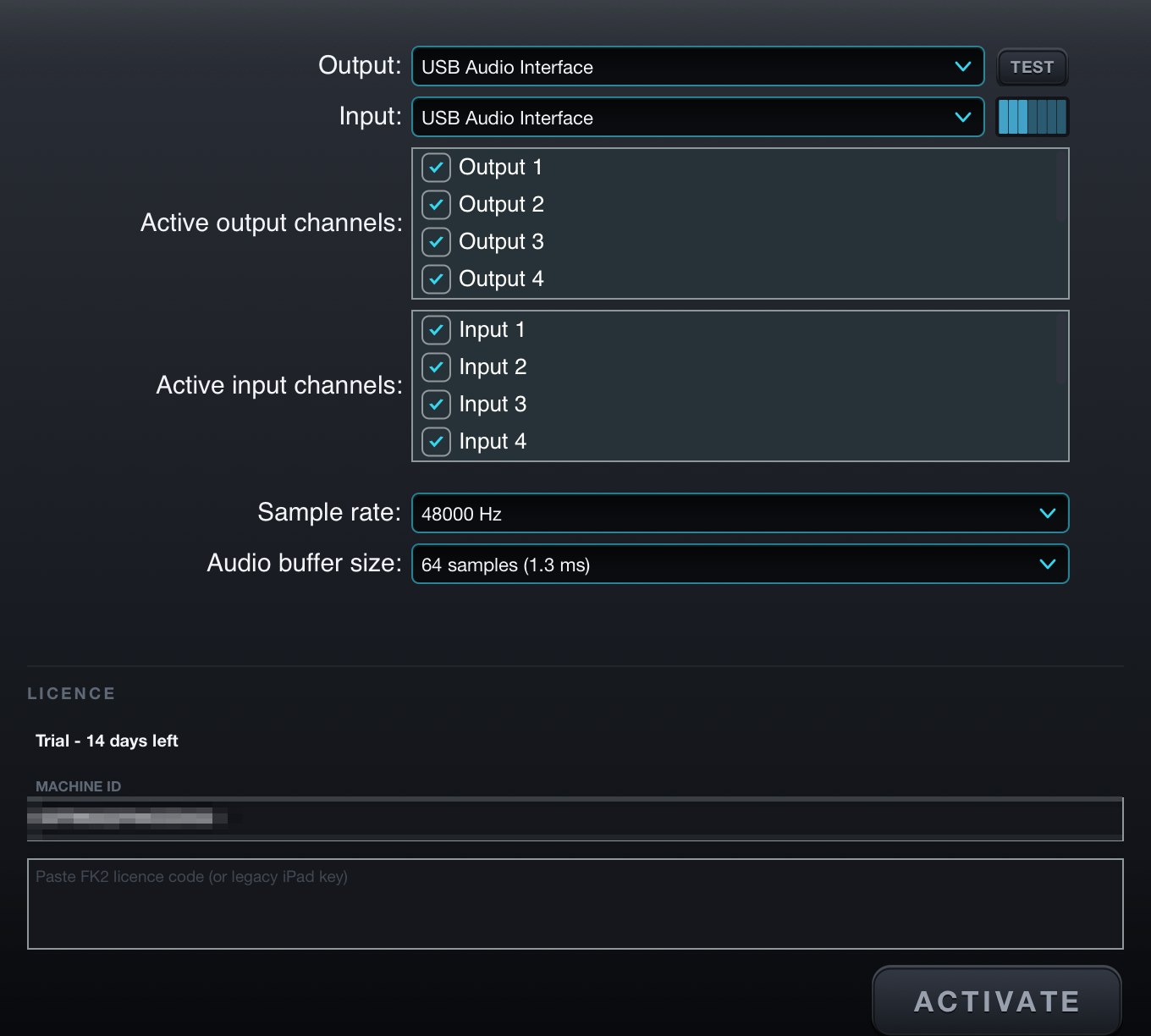
- Tap SETTINGS, check that Output/Input show your interface, tick the channels you use, and set the sample rate and buffer (48–192 kHz, as supported by the interface).
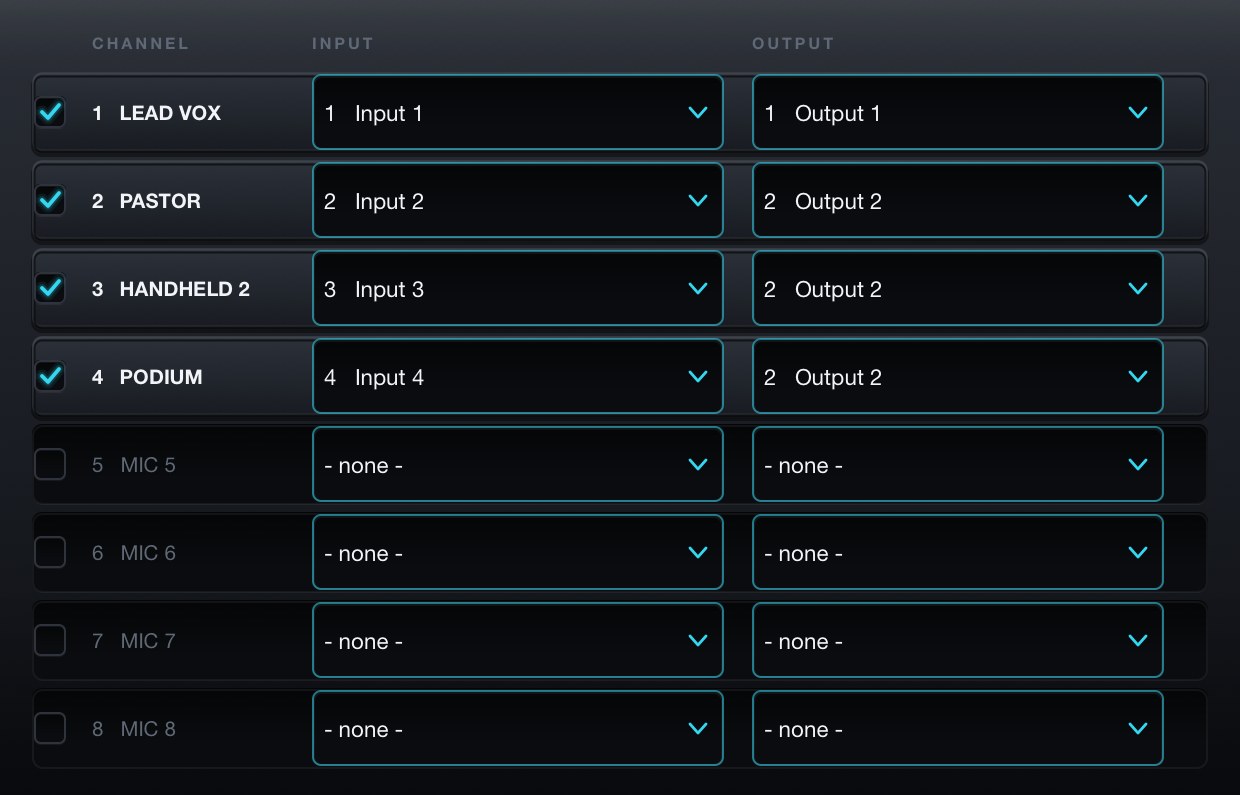
- Tap ROUTING and choose the channels you need with their Input and Output.
- Double-tap a channel name to rename it.
- Bring the mics up as usual — feedback is suppressed automatically.
Controls
Every control works as on Mac/Windows; see the FeedbackKiller Plus+ manual for the full description.
- ON enables a channel, STRENGTH sets suppression strength, NOISE reduces background noise, LOW CUT removes lows.
- METERS show IN/OUT for every channel. The channel number turns into a pink badge while that channel suppresses feedback.
- NOTCH maps the frequencies being cut.
- BYPASS passes every channel straight through.
Saving and loading
Tap SAVE and choose:
- Save rack as... — saves the whole setup.
- Load scene (keep audio device)... — loads channel names and settings but keeps the interface that is connected now.
- Load scene + audio device... — loads the settings and the saved interface setup.
During a show
- The iPad screen stays on while the app is open.
- If the USB cable is pulled or the interface drops out, the app tries to reconnect every 2 seconds — no need to restart it.
- If the status bar shows an orange/red message:
- AUDIO STOPPED - RECONNECT USB INTERFACE — check the USB cable and the hub's power.
- CHECK USB I/O - ACTIVE ROUTE UNAVAILABLE — an enabled channel uses an input or output this interface does not have; fix it in ROUTING.
- FAIL-SAFE PASS-THROUGH ACTIVE - CHECK AUDIO BUFFER — iPadOS delivered audio in a buffer size the app was not set up for (usually during a route change or when a device is plugged in or out), so the app passed audio straight through for a moment instead of going silent. If it keeps appearing, set the buffer again in SETTINGS and make sure no other audio device, such as Bluetooth, is connected.
Trial and licence
- Full function for 14 days; the bottom-right of the status bar shows the days left.
- After 14 days feedback suppression stops, but NOISE, LOW CUT and BYPASS keep passing audio as normal.
- Enter your key in SETTINGS under LICENCE and tap ACTIVATE.
If activation fails
- Touch and hold the key box and choose Paste. Spaces and hidden characters that LINE or e-mail add to a copied key are removed by the app automatically.
- Could not connect to the licence server — check the internet connection, then update to the latest version. New versions activate through tsoundman.com, which every network can reach.
- Invalid licence code — the key must start with FK2- and belong to this product (a key for one product does not work in another). If it still fails, send a screenshot on LINE and we will check it or issue a new key.