An iPad app that controls Signal Rack (Windows/Mac) over Wi-Fi. Adjust gain and mute, choose inputs and outputs, bypass plug-ins, recall per-song scenes, adjust plug-in controls with Quick Controls and set the BPM from the stage or the middle of the room. All audio is still processed on the computer, so if Wi-Fi drops the sound keeps going.
First pairing
- Put the iPad and the computer on the same Wi-Fi network or hotspot.
- In Signal Rack click REMOTE (top right) to show the QR code and 6-digit code.
- Open Signal Rack Remote, tap Scan Pairing QR and scan it. The app tries every address of the computer in the QR code and uses whichever works.
- Or type the 6-digit code, then tap the computer in the list (Macs only), or type its IP address and tap Connect.
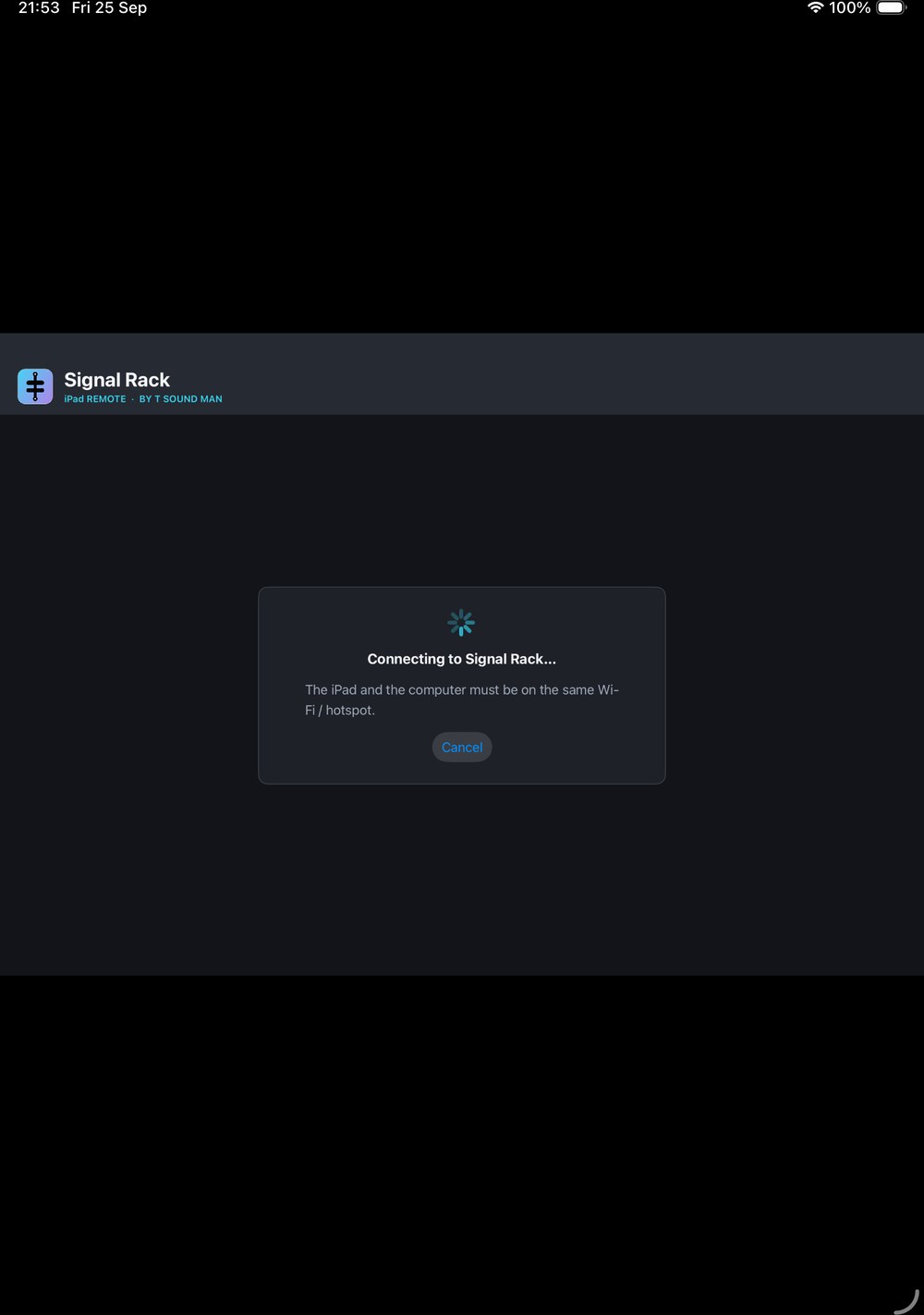
One computer accepts up to 4 iPads at the same time. On Windows, if the app cannot connect, check that Signal Rack is allowed in Windows Firewall. Next time you open the app it reconnects to the same computer by itself.
The control screen
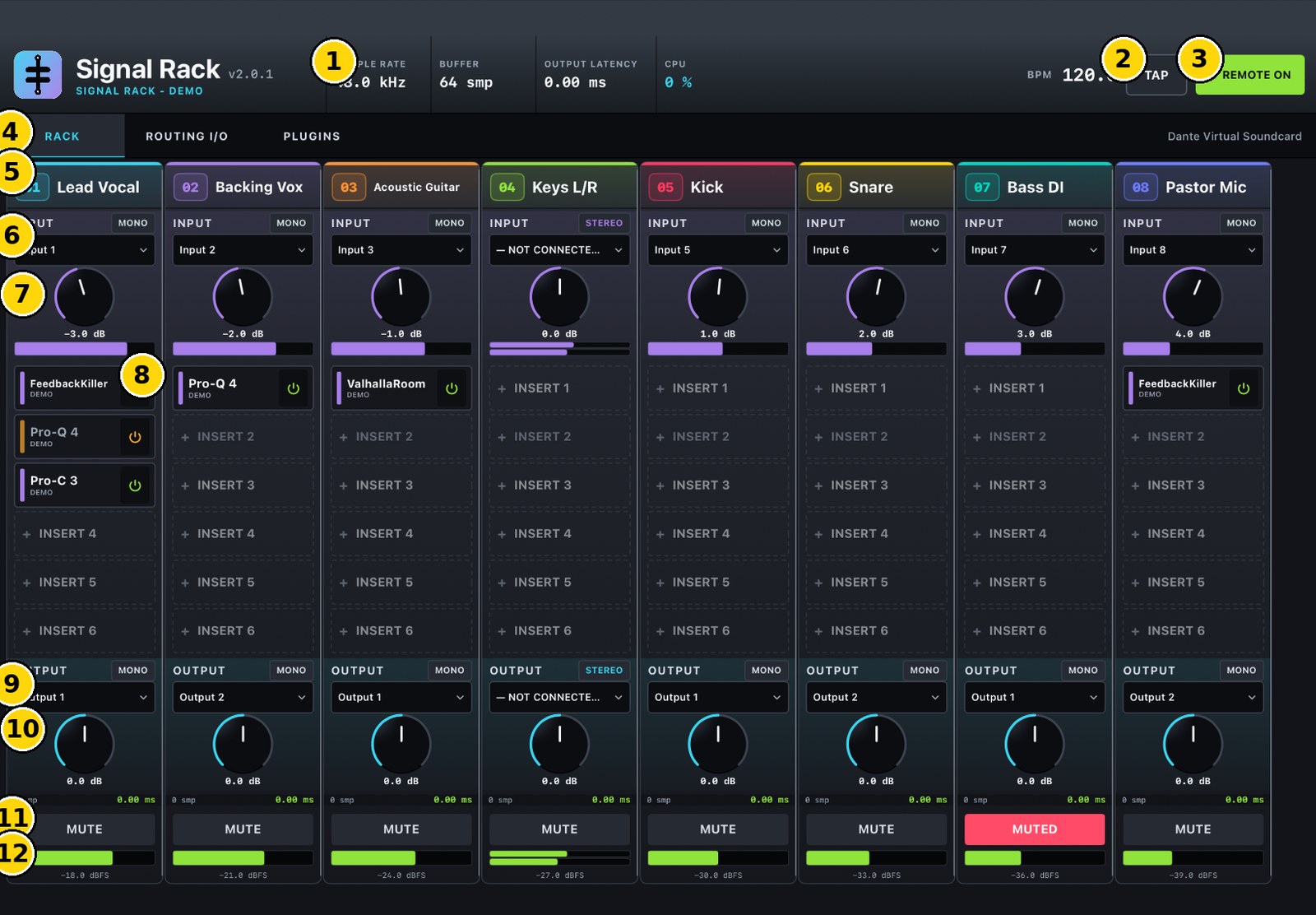
- System readouts — the computer's sample rate, buffer, output latency and CPU.
- BPM / TAP — tap TAP in time to set the BPM. It flashes on every beat, in step with the computer.
- REMOTE ON — connection status; tap it to Disconnect.
- Tabs — RACK, SCENES, QUICK, ROUTING I/O and PLUGINS.
- Channel header — channel number and name.
- INPUT — tap to choose the input. MONO/STEREO switches between a single channel and a stereo pair.
- Input gain — drag up or down to turn; drag slowly for fine steps, quickly for big ones; double-tap for 0 dB. The meter below shows the input level (two bars for stereo).
- Plug-ins — the plug-in in each slot. Tap the ⏻ button to bypass it: a violet bar means active, orange means bypassed. Tapping the name itself does nothing, so a stray touch cannot switch a plug-in off during a show.
- OUTPUT — choose the output and MONO/STEREO.
- Output gain — drag to turn; double-tap for 0 dB.
- MUTE — tap to mute the channel (red while MUTED).
- Output meter — the channel's output level; two bars for stereo.
MUTE ALL and LOCK
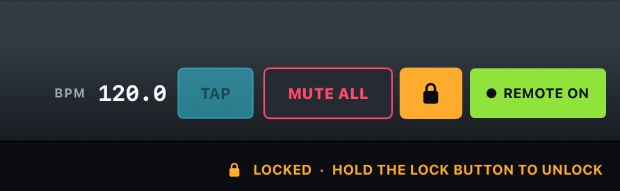
- MUTE ALL — one tap mutes every channel at once, for emergencies such as feedback or a wrong cable. The button changes to ALL MUTED · TAP TO RESTORE; tap it again and confirm Restore every channel as it was to bring every channel back as it was. Channels that were already muted stay muted.
- LOCK (padlock) — one tap locks the controls so a stray touch cannot change anything during the show. You can still scroll. Hold for 1 second to unlock.
- While locked, MUTE ALL still works; restoring needs unlocking first.
The SCENES tab
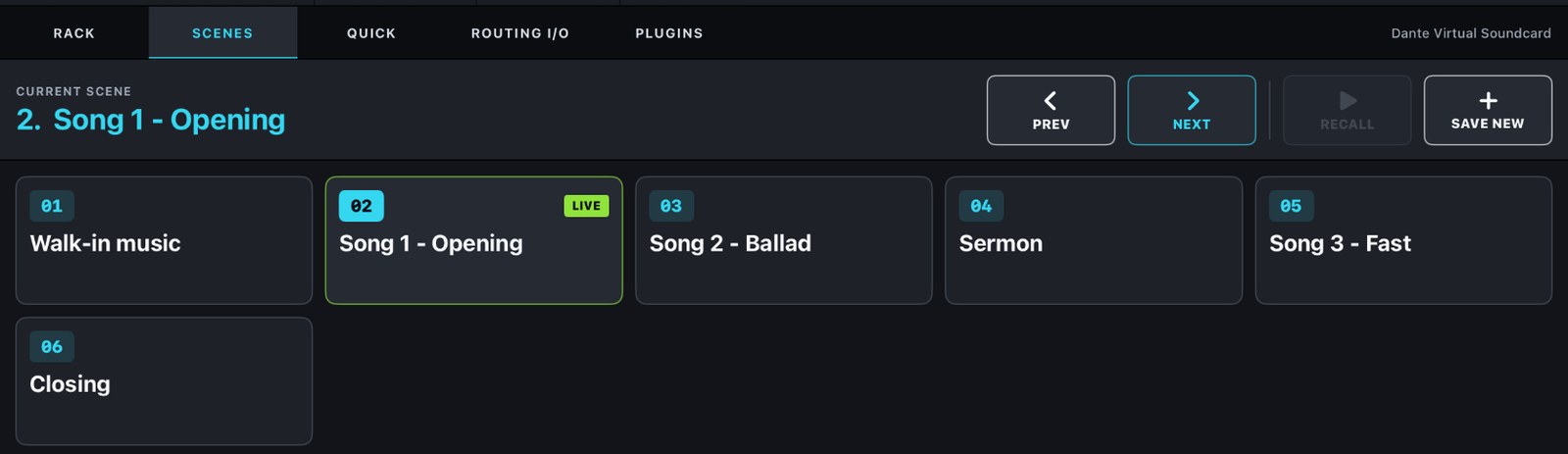
A scene stores gains, mutes, bypass, every setting of every plug-in and the BPM for a song (see the Signal Rack manual).
- Tap a card to select it, then tap RECALL. The scene in use shows LIVE and its name appears under CURRENT SCENE.
- PREV / NEXT — recall the previous or next scene straight away, handy for following the set list.
- SAVE NEW — name it and store the current mix as a new scene.
- Touch and hold a card for its menu: Recall now, Update with the mix now, Rename, Move earlier / later and Delete.
The QUICK tab
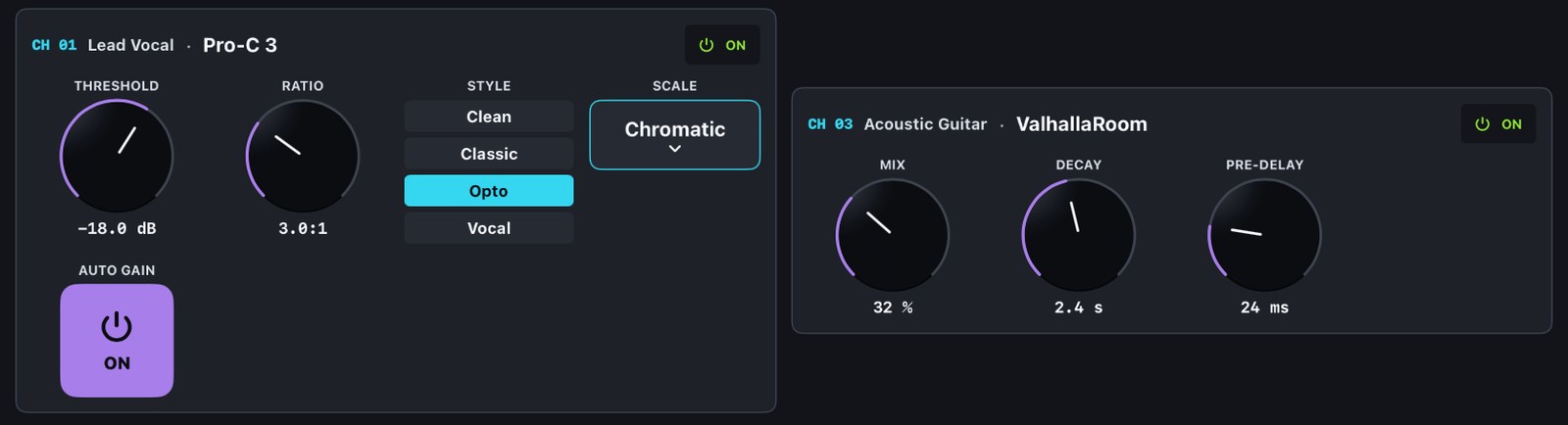
Shows the plug-in controls chosen on the computer (right-click a plug-in → iPad Quick Controls, up to 4 per plug-in).
- Knobs — drag up or down; drag slowly for fine steps; double-tap for the default value.
- On/off buttons — tap to switch ON / OFF.
- Choices — up to 6 options appear as buttons to tap; longer lists (such as Auto-Tune's KEY or SCALE) open a grid when you tap the box.
- The ON button at the top right of each card bypasses that plug-in.
The ROUTING I/O and PLUGINS tabs
- ROUTING I/O — every channel on one page for quick input, output and MONO/STEREO changes.
- PLUGINS — every plug-in in the rack, grouped by channel. Tap a plug-in card to bypass it or turn it back on.
During a show
- The iPad screen stays on while connected.
- If Wi-Fi drops, or you switch to another app and come back, RECONNECTING… appears and the app reconnects within a few seconds. The audio on the computer never stops.
- The iPad and the computer always show the same values; adjust on either side.
Tips
- A separate Wi-Fi network or router just for the sound system is the most reliable.
- If the computer is on several networks (for example Wi-Fi and Dante), put the iPad on the same Wi-Fi as the computer.
- Adjust other settings inside a plug-in in its window on the computer, or make the ones you use most into Quick Controls.