An iPhone and iPad app that controls FeedbackKiller Plus+ (Mac/Windows) over Wi-Fi. Walk to the stage or the middle of the room, listen, and adjust — no need to go back to the computer. All audio is still processed on the computer; the app is only a controller, so if Wi-Fi drops the sound keeps going.
First pairing
- Put the iPhone/iPad and the computer on the same Wi-Fi network.
- In FeedbackKiller Plus+, click REMOTE to show the QR code and 6-digit code.
- Open FeedbackKiller Remote, tap Scan Pairing QR and scan it.
- Or type the 6-digit code, then tap the computer under NEARBY MACS (Macs only), or type its IP address under OR MANUAL ADDRESS and tap Connect.

One computer accepts up to 2 remotes at the same time. On Windows, if the app cannot connect, check that FeedbackKiller Plus+ is allowed in Windows Firewall.
The control screen
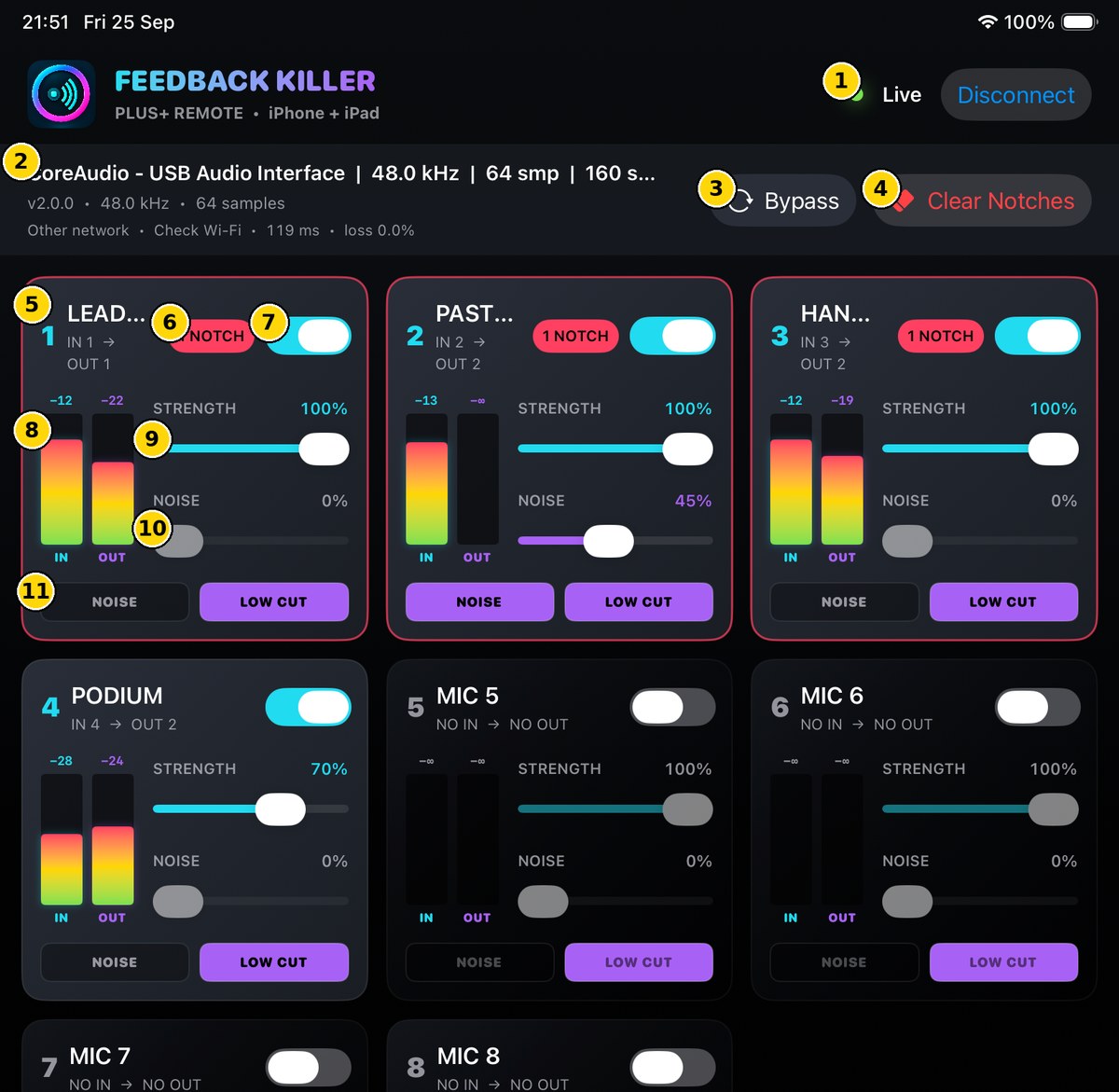
- Connection status — Live while connected. Tap Disconnect to disconnect.
- System line — the computer's audio device, sample rate, buffer and latency, plus network quality (ms, loss).
- Bypass — passes every channel straight through (same as BYPASS on the computer).
- Clear Notches — clears every active notch on every channel so the detectors start learning again. Always asks for confirmation; audio keeps running.
- Channel number, name and route — for example IN 1 → OUT 1.
- NOTCH badge — how many notches this channel is using. The card gets a pink border while it is suppressing.
- Channel on/off switch.
- IN / OUT meters — the channel's input and output level.
- STRENGTH — feedback suppression strength.
- NOISE — noise reduction amount.
- NOISE and LOW CUT buttons — turn noise reduction and the low cut on or off for this channel.
If the signal drops
The app shows Remote signal lost and reconnects automatically. The computer keeps processing audio and your settings are kept.
Tips
- A quiet Wi-Fi network, or a separate router just for the sound system, is the most reliable.
- The system line shows network quality. If latency is high or there is packet loss, move closer to the router.