A standalone 16-channel AI feedback suppressor for Windows and Mac. No DAW needed: connect an audio interface and plug in your mics. Every channel has a single AI button, and the AI does the rest: it cuts howls, keeps its hands off sung and spoken voices, removes unwanted lows, and AUTO NOISE turns down instrument bleed and background noise while nobody sings. None of it adds latency. It runs the same AI as the Feedback Killer AI plug-in.
Installing
- Windows: double-click FeedbackKillerAI16CH-1.0.0-Windows-Setup.exe and click Next to the end. It adds a Desktop and Start-menu shortcut.
- Mac: double-click FeedbackKillerAI16CH-1.0.0-macOS-Installer.pkg; the app goes into Applications (or open the .dmg and drag it there yourself).
- Mac (first launch): if macOS refuses to open it, right-click the file and choose Open. When macOS asks for microphone access, click Allow, or the app hears nothing from the interface.
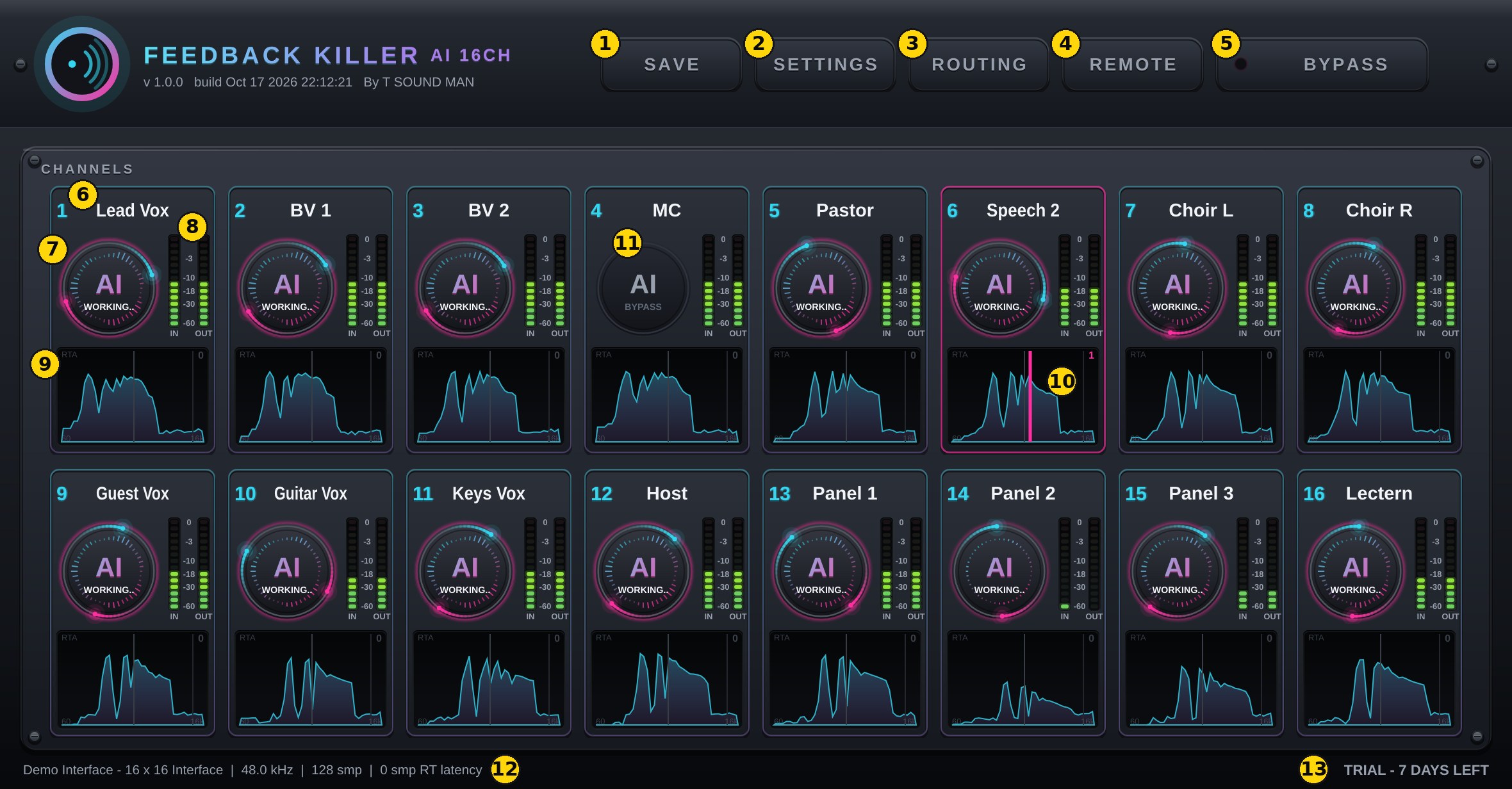
What is on the screen
- SAVE — save the whole rack to a file (Save rack as...) or open a saved one (Load rack...).
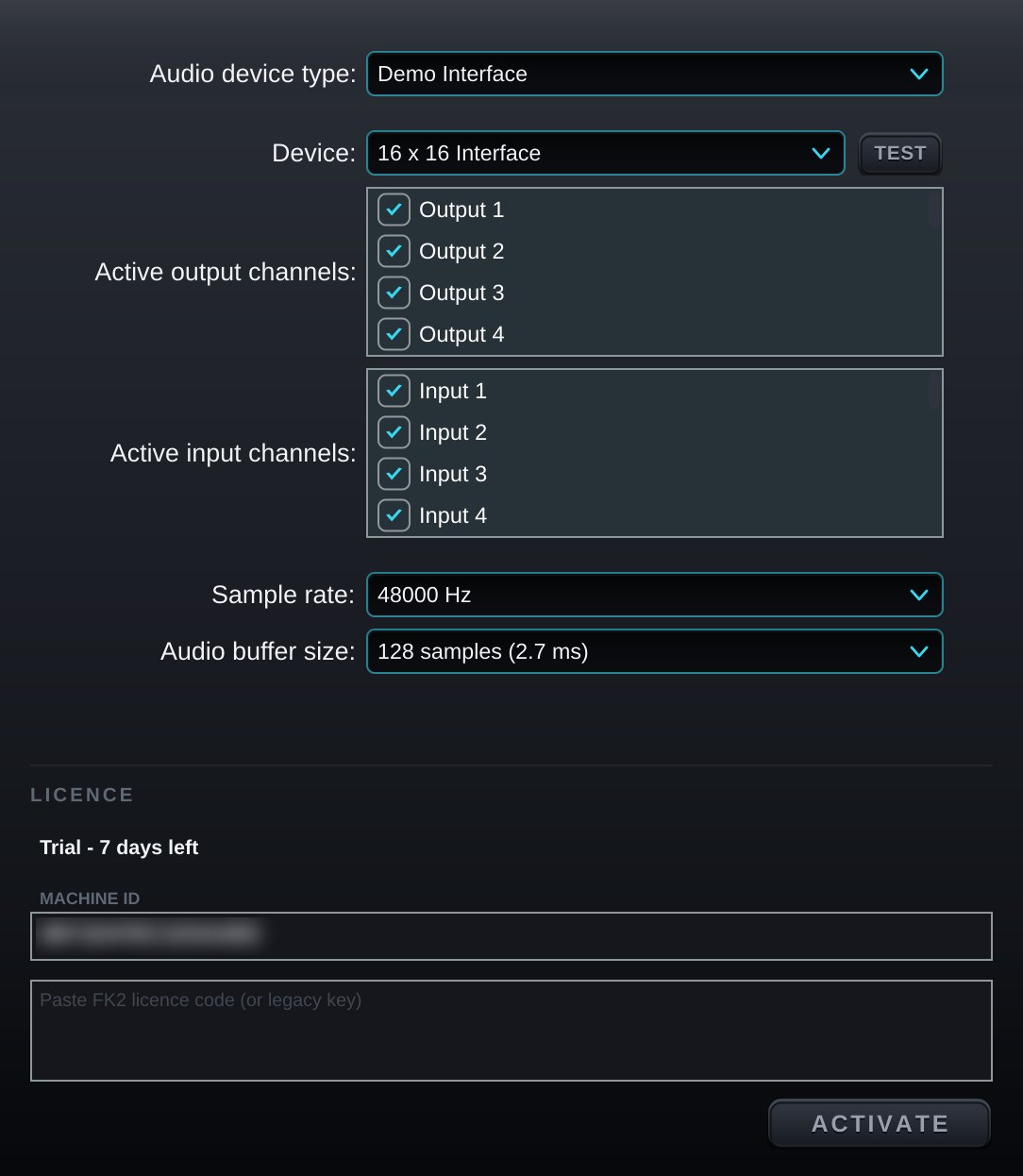
- SETTINGS — audio interface, sample rate, buffer size and licence.
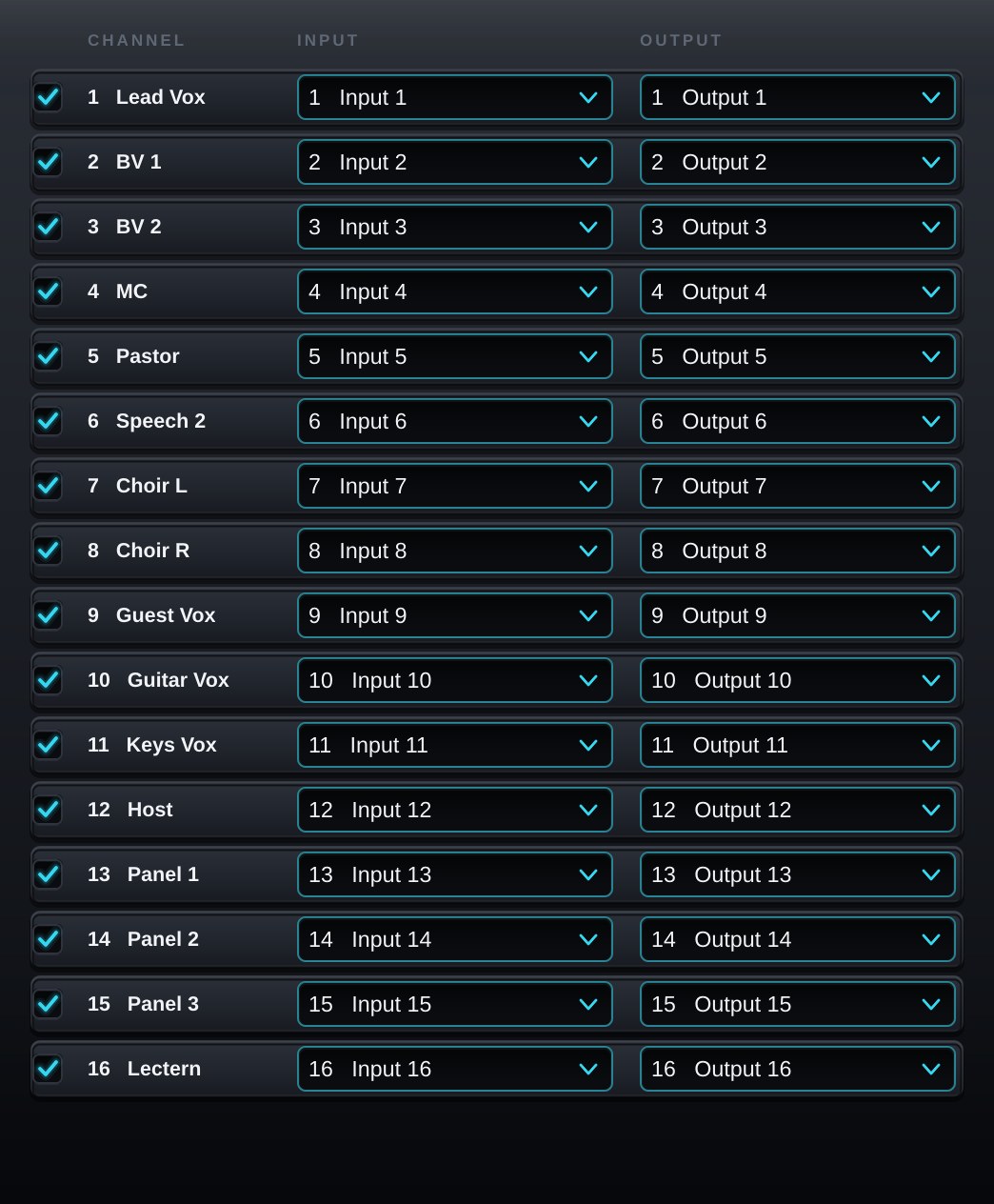
- ROUTING — turn channels on, and choose the input each channel listens to and the output it sends to.
- REMOTE — QR code for the iPad control app (the app will be available later).
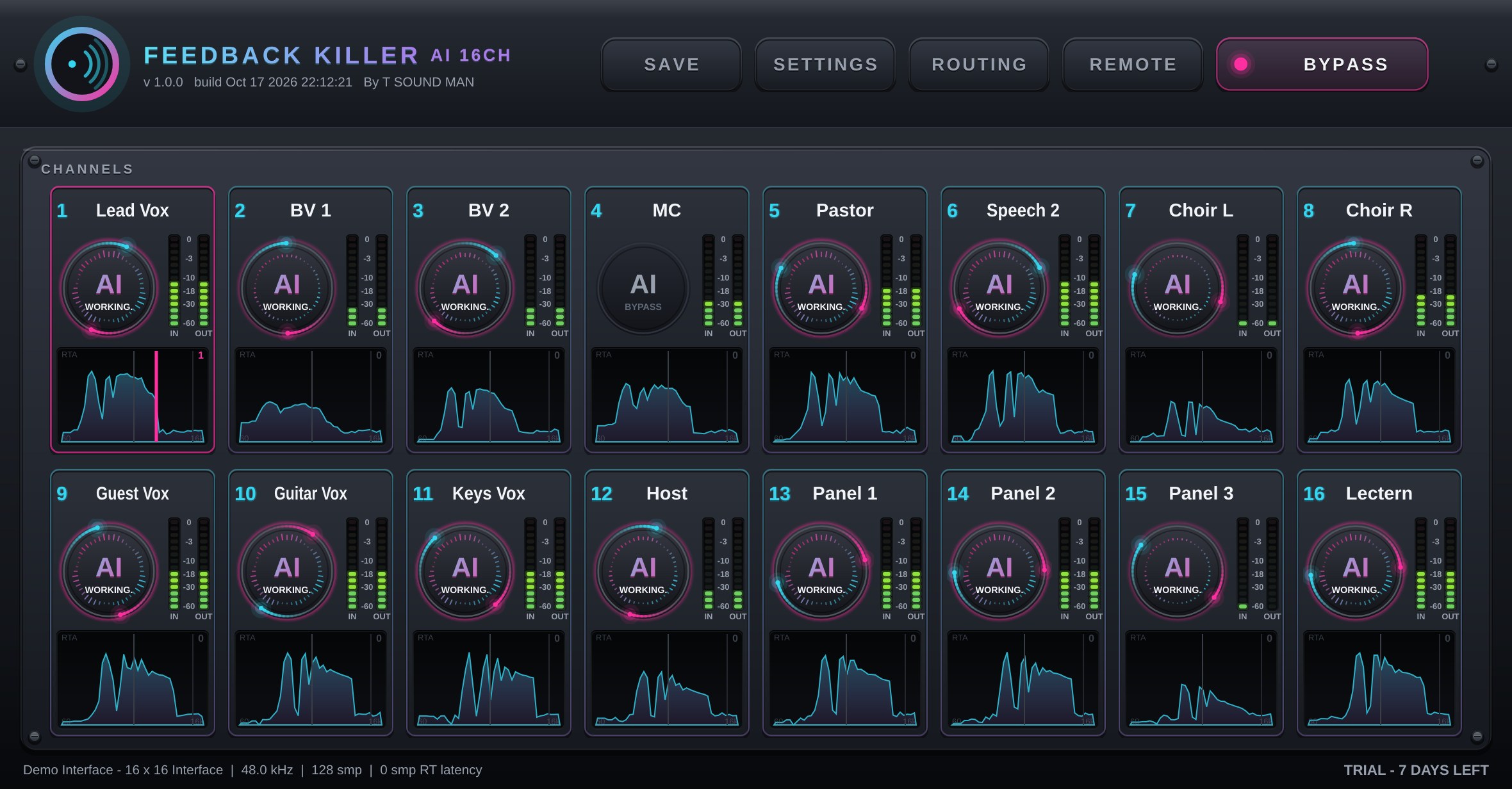
- BYPASS — passes every channel straight through at once (with a smooth crossfade, no clicks).
- Channel name — double-click to rename (LEAD VOX, PASTOR, ...).
- AI button — the one control on a channel. It reads WORKING, with turning rings, while the AI runs. Click it again for BYPASS: that channel passes straight through (never muted). On a channel that is not in use yet, click it to bring the channel in.
- IN / OUT meters — levels before and after processing, in dBFS.
- RTA — a 60 Hz–16 kHz spectrum of the incoming sound.
- Notch position — when the AI cuts a howl, a pink line marks the frequency, the number at the top right counts the active cuts, and the channel's frame turns pink.
- A bypassed channel — the AI button goes dark and reads BYPASS.
- Status bar — audio device, sample rate, buffer and latency. Audio problems are reported here.
- Licence status — trial days left, or LICENSED.
Getting started
- Connect the audio interface and start the app. On first launch it picks the best audio device by itself (on Windows, the interface's ASIO driver first).
- To change it, click SETTINGS, choose your interface, tick the channels you use, set the sample rate (48000 Hz) and the lowest buffer that does not crackle (usually 64–128 samples). The app remembers the device for next time.
- Click ROUTING, tick the channels you need, and pick each one's Input (the mic) and Output (back to the console).
- Name each channel after its mic.
- Check that every channel's AI button reads WORKING, then open the mics as usual. When a howl starts, the AI cuts that frequency at once, but leaves a note the singer is holding alone.
- Click SAVE → Save rack as... to keep the setup for next time.
What the AI does
While the AI button reads WORKING, all of this runs together with nothing to set:
- Feedback suppression — finds and cuts a ringing frequency while it is still quiet, before the audience hears it.
- Voice guard — tells a howl from a sung or spoken voice, so held notes are not cut and there are no robotic artefacts.
- Low cut — removes unwanted lows such as wind and stage rumble.
- AUTO NOISE — turns down instrument bleed, fans, air-con and hum while nobody is singing or speaking.
This app is made for vocal and speech mics. It is not recommended on instrument mics.
Connecting to the console
- Send the mic signals from the console's direct outs / insert sends into the audio interface.
- Send the processed audio from the interface outputs back into the console (insert returns or new channels).
- Digital consoles with a multichannel USB card (X32, Wing, SQ, DM, TF and so on) need just one USB cable; use the USB channels both ways.
- The app adds no latency of its own; all of it comes from the interface and buffer size (shown in the status bar).
- The 16 channels are spread across several CPU cores, so the computer stays light and the audio does not stutter.
- If the audio driver stops by itself mid-show, or the USB cable is pulled and plugged back, audio comes back by itself within about 2 seconds.
Bypass
Click BYPASS at the top to send every channel straight through immediately, for example to check whether a sound problem comes from the processing. To bypass just one channel, click that channel's AI button instead.
Trial and licence
- Full function for 7 days; the bottom right shows the days left.
- After 7 days processing stops and every channel passes audio straight through (it never goes silent mid-show); the status bar reads TRIAL ENDED.
- One key works on 2 computers (for example, the show machine and a spare).
- Enter your key in SETTINGS under LICENCE: paste the key (it starts with FK2-) and click ACTIVATE.
If activation fails
- Paste the key with Ctrl+V (Mac: Cmd+V) or right-click the box and choose Paste. Spaces and hidden characters that LINE or e-mail add to a copied key are removed by the app automatically.
- Could not connect to the licence server — check the internet connection and try again. The app activates through tsoundman.com, which every network can reach.
- Invalid licence code — the key must start with FK2- and be a Feedback Killer AI 16CH key (keys for the Feedback Killer AI plug-in or Plus+ 8CH do not work here). If it still fails, send a screenshot on LINE and we will check it or issue a new key.