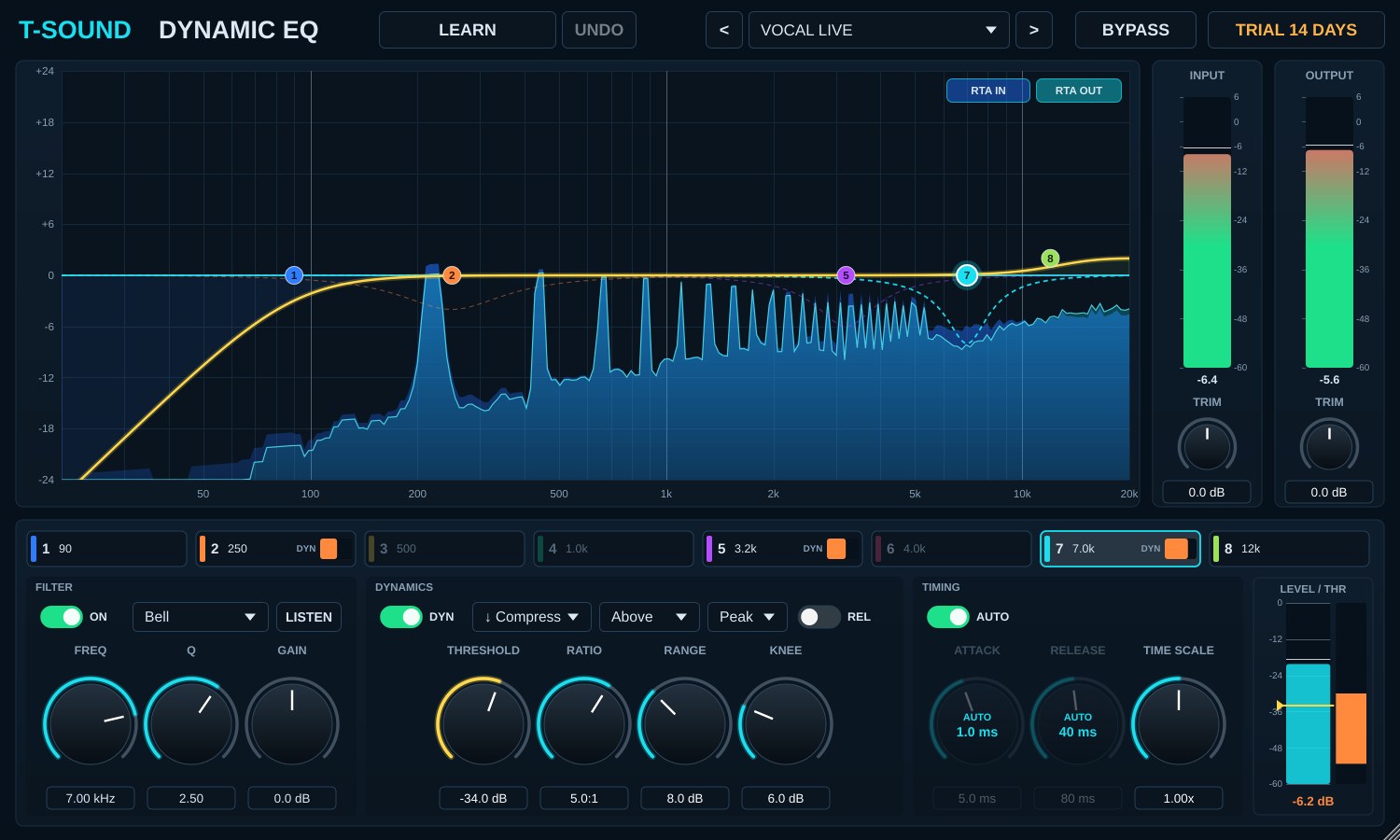
An 8-band EQ where every band can cut or boost by itself, following the level in its own range (dynamic EQ). It only works when the problem happens, such as harshness on loud notes, sharp "s" sounds or boom when the singer is close to the mic, so a normal take is not thinned the way a static EQ cut would thin it. It runs as VST3 / AU and Standalone on Windows and Mac and adds no latency at all (0 samples), so it is safe on stage monitors.
Install
- Windows: download TSoundDynamicEQ-1.2.0-Windows-Setup.exe and double-click it. It puts T-Sound Dynamic EQ.vst3 in C:\Program Files\Common Files\VST3\ (close your DAW first).
- Mac: download TSoundDynamicEQ-1.2.0-macOS-Installer.pkg and double-click it. It installs both the VST3 and the AU (Logic / GarageBand) in one go. The package is notarized by Apple, so no Terminal step is needed.
- .zip files, if you prefer to copy by hand: put the .vst3 in the VST3 folder above (Mac: /Library/Audio/Plug-Ins/VST3/) and the .component in /Library/Audio/Plug-Ins/Components/.
- Rescan plug-ins in your DAW (or Signal Rack). It is listed under EQ by T Sound Man.
Quick start
- Insert the plug-in on the vocal channel (before or after the compressor).
- Choose the VOCAL LIVE preset (the default) from the box at the top, or step with < >.
- Have the singer perform the loudest part and press LEARN. The plug-in listens for 8 seconds and sets the THRESHOLD of every dynamic band.
- Watch the orange bar in the LEVEL / THR meter (bottom right) and the yellow curve in the graph. On loud notes a band should cut a few dB; on normal singing it should hardly move.
- If it does too little or too much, adjust that band's THRESHOLD, or press UNDO to go back to the thresholds from before LEARN.
Top row
- LEARN — listens to the real signal for 8 seconds (only while the overall level is above −60 dBFS), then sets the THRESHOLD of every band with DYN on from the levels that band saw: an Above band so that roughly the loudest 15 % gets cut, a Below band at the quiet 25 % mark. The button shows a percentage while listening; NO SIGNAL means nothing is coming in yet. Press it again to cancel.
- UNDO — restores the thresholds from before the last LEARN.
- Preset — pick from the list, or step with < >. At the end of the list, PASTE EQ FROM SYSTEM CHECK loads the EQ T-Sound System Check suggests (press COPY AS TEXT on its EQ page first) as static bells, up to 8 bands.
- BYPASS — switches the processing off, with a crossfade so there is no click.
- TRIAL / LICENSED badge (top right) — trial days left; click it to enter a licence key.
Graph and meters
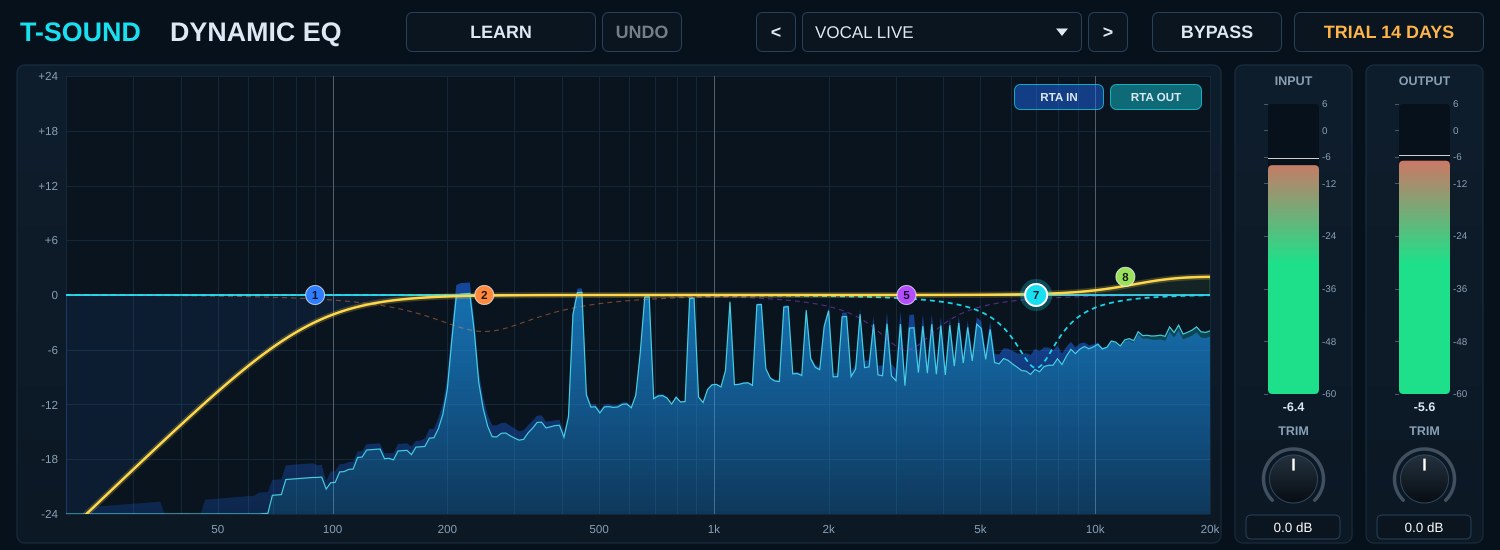
- White curve = the static EQ you set, yellow curve = the EQ working right now (including the dynamic part), dashed band-coloured curves = how far each band can cut or boost (RANGE).
- Blue fill = RTA of the input (RTA IN), cyan line = RTA of the output (RTA OUT); switch them with the buttons at the top right of the graph. The RTA is tilted +3 dB/oct so pink noise reads flat, and it only runs while the plug-in window is open.
- Drag a point = FREQ and GAIN, mouse wheel over a point = Q, double-click a point = GAIN back to 0 dB, double-click empty space = switch on a new band there.
- Alt-click and hold a point to listen to that band's range for a moment; release to go back.
- INPUT / OUTPUT — level meters, with a TRIM knob under each (−24 to +24 dB).
Band tabs 1–8
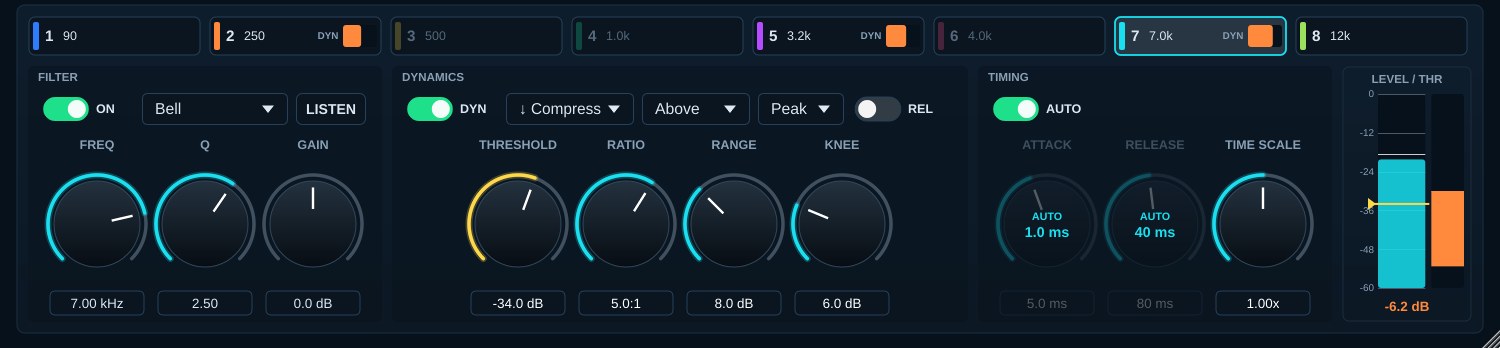
The row of tabs above the controls shows every band's frequency. Bands that are off are dimmed, and an orange DYN mark means the band is dynamic. Click a tab to edit that band below.
FILTER
- ON — switches the band on or off.
- SHAPE — Bell, Low Shelf, High Shelf, Low Cut, High Cut (the cuts are 12 dB/oct and always static).
- LISTEN — solo the band's range: Bell = band-pass, Low Shelf / Low Cut = low-pass, High Shelf / High Cut = high-pass. Use it to find the problem frequency. It crossfades in 20 ms (no click) and is not saved with the session.
- FREQ 20 Hz–20 kHz, Q 0.1–18, GAIN −24 to +24 dB — the normal EQ (GAIN is the starting point before the dynamic part).
DYNAMICS
- DYN — switches the dynamic part on. Off = a plain EQ band.
- ↓ Compress / ↑ Expand — cut the band down or push it up.
- Above / Below — act when the level in the band is above or below the threshold.
- Peak / RMS — Peak reacts to short transients (good for "s" sounds), RMS follows the average level (good for boom or a build-up).
- REL — compares the band with the overall level instead of its absolute level. A threshold of −10 dB means "this band is louder than the overall level minus 10 dB", so the band follows the tonal balance whether the singer is loud or soft (it does nothing while the overall level is below −70 dBFS).
- THRESHOLD −80 to 0 dB — where it starts. You can also drag the yellow line in the LEVEL / THR meter.
- RATIO 1:1 to 20:1 — 4:1 means the gain moves 0.75 dB for every 1 dB over the threshold.
- RANGE 0–24 dB — the most it will cut or boost.
- KNEE 0–24 dB — how softly it starts around the threshold.
TIMING
- AUTO — sets attack and release from the band's frequency: attack about 2 cycles (1–40 ms), release about 20 cycles (40–300 ms). Low bands are slower so they do not distort.
- ATTACK 0.1–200 ms, RELEASE 5–2000 ms — used when AUTO is off.
- TIME SCALE 0.25x–4x — makes the AUTO times faster or slower (the de-esser uses 0.7x).
LEVEL / THR
The meter of the selected band: coloured bar = the level the band sees, yellow line = the threshold (drag it), orange bar = cutting, green bar = boosting. The number underneath is the dB it is cutting or boosting right now.
Presets
- VOCAL LIVE — 90 Hz low cut, control of boom at 250 Hz, harshness at 3.2 kHz and "s" sounds at 7 kHz, plus a little air on top.
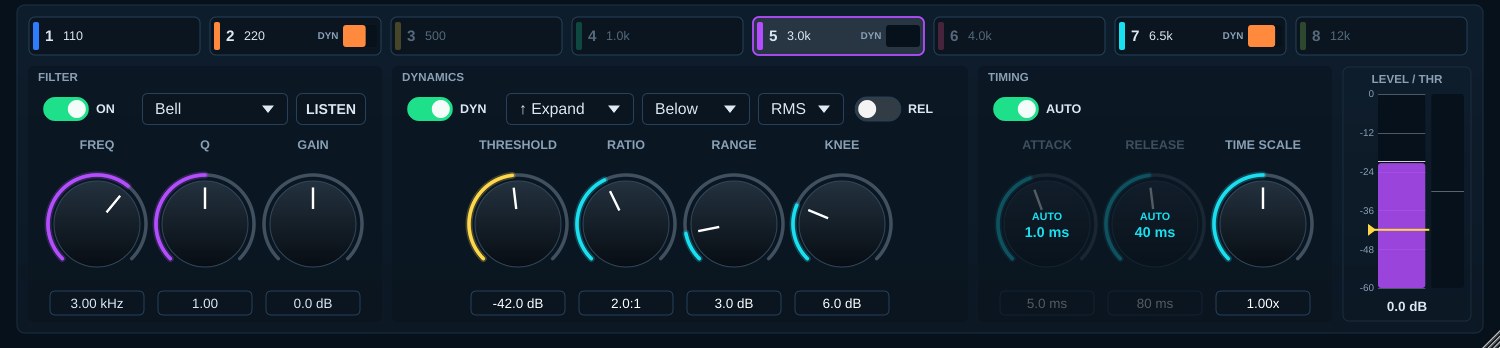
- DE-ESSER — cuts "s" sounds at 6.5 kHz with Peak detection and fast timing.
- PROXIMITY CONTROL — a 180 Hz low shelf that holds back boom when the singer gets close.
- SPEECH / PODIUM — for talkers: controls boom, lifts 3 kHz presence when the voice gets quiet, cuts "s" sounds.
- ACOUSTIC GUITAR — controls body boom at 200 Hz and pick noise at 2.5 kHz.
- KICK TIGHTEN — pushes the 60 Hz thump on each hit and controls the 380 Hz box.
- MIX BUS POLISH — gentle control of the lows and 3 kHz, and a little more air when the mix gets loud.
- FLAT / INIT — start from scratch.
Tips
- Start from the nearest preset and press LEARN during the soundcheck, so the thresholds fit the real mic and voice.
- Use LISTEN to find the harsh frequency first, then switch on DYN for that band.
- Not sure which band is working? Compare the yellow curve with the white one: where they part is where a band is cutting or boosting.
- Resize the window by dragging the bottom-right corner; everything is drawn in code and stays sharp at any size.
Licence and trial
Every feature works for a 14-day trial. When the trial ends without activation, the plug-in passes audio through untouched (like BYPASS), so a show never loses its sound. Buy a licence at tsoundman.com, click the TRIAL badge at the top right, enter the licence key (it starts with FK2-) and press Activate.
If activation fails
- The key window has Paste code from clipboard (pastes the key you copied) and Load key file... (picks a .txt file containing the key). Both work even in hosts that block Ctrl+V / Cmd+V or right-click paste inside plug-ins.
- Spaces or odd characters that come along with a key from LINE or e-mail are removed for you, and the result message always appears on top, never hidden behind the host window.
- No licence code — the key box is empty. Copy the key again and press Paste code from clipboard, or save the key in a text file and use Load key file...
- Could not connect to the licence server — check that the computer is online, then try again.
- Invalid licence code — the key must start with FK2- and must belong to this product (keys do not work across products). If it still fails, send a screenshot on LINE and we will check it or issue a new key.