A standalone 8-channel feedback suppressor for Windows and Mac. No DAW needed: connect an audio interface and plug in your mics. Every channel runs the same suppression engine as the Feedback Killer plug-in, and the whole rack can be controlled from an iPhone or iPad with the FeedbackKiller Remote app.
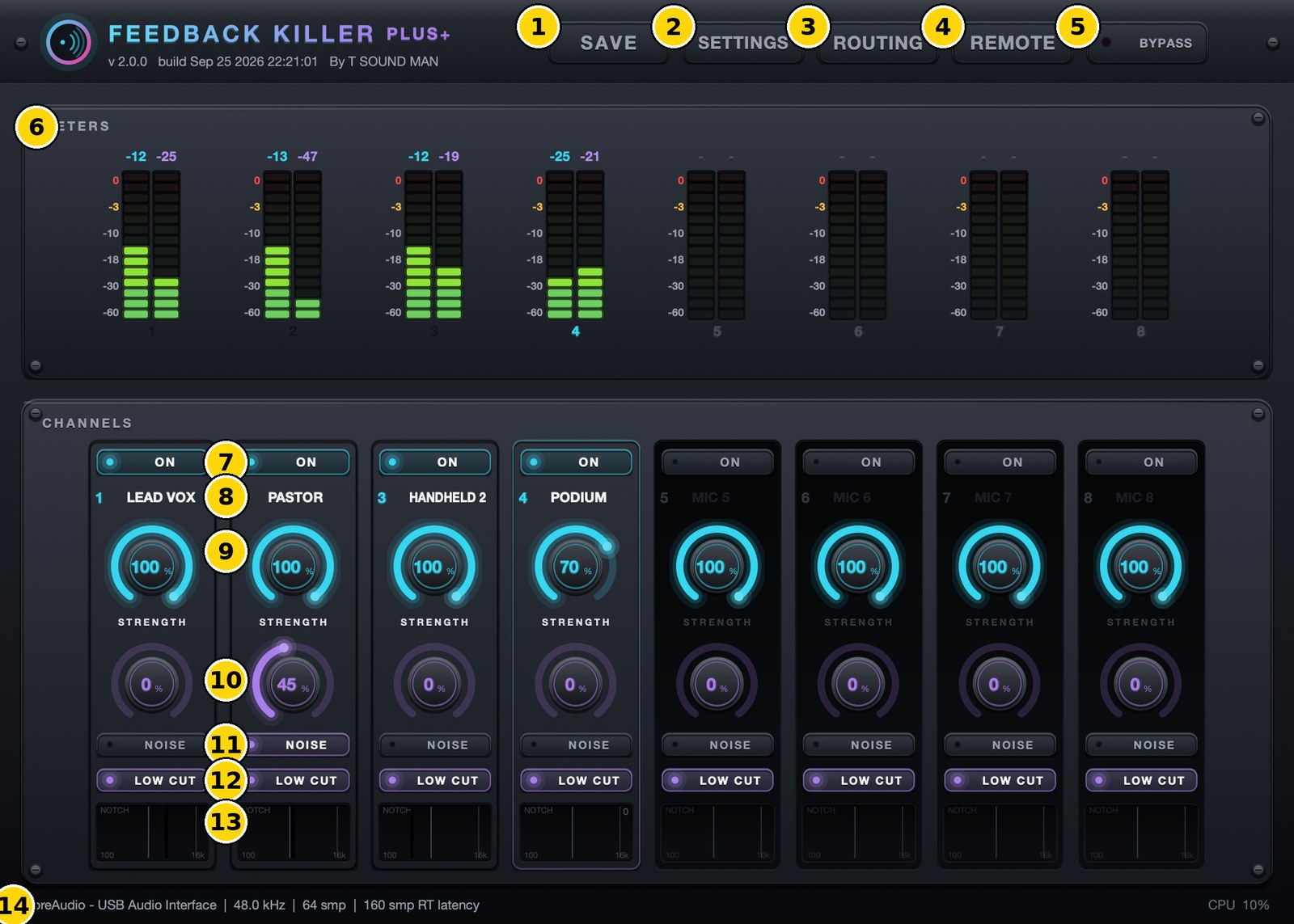
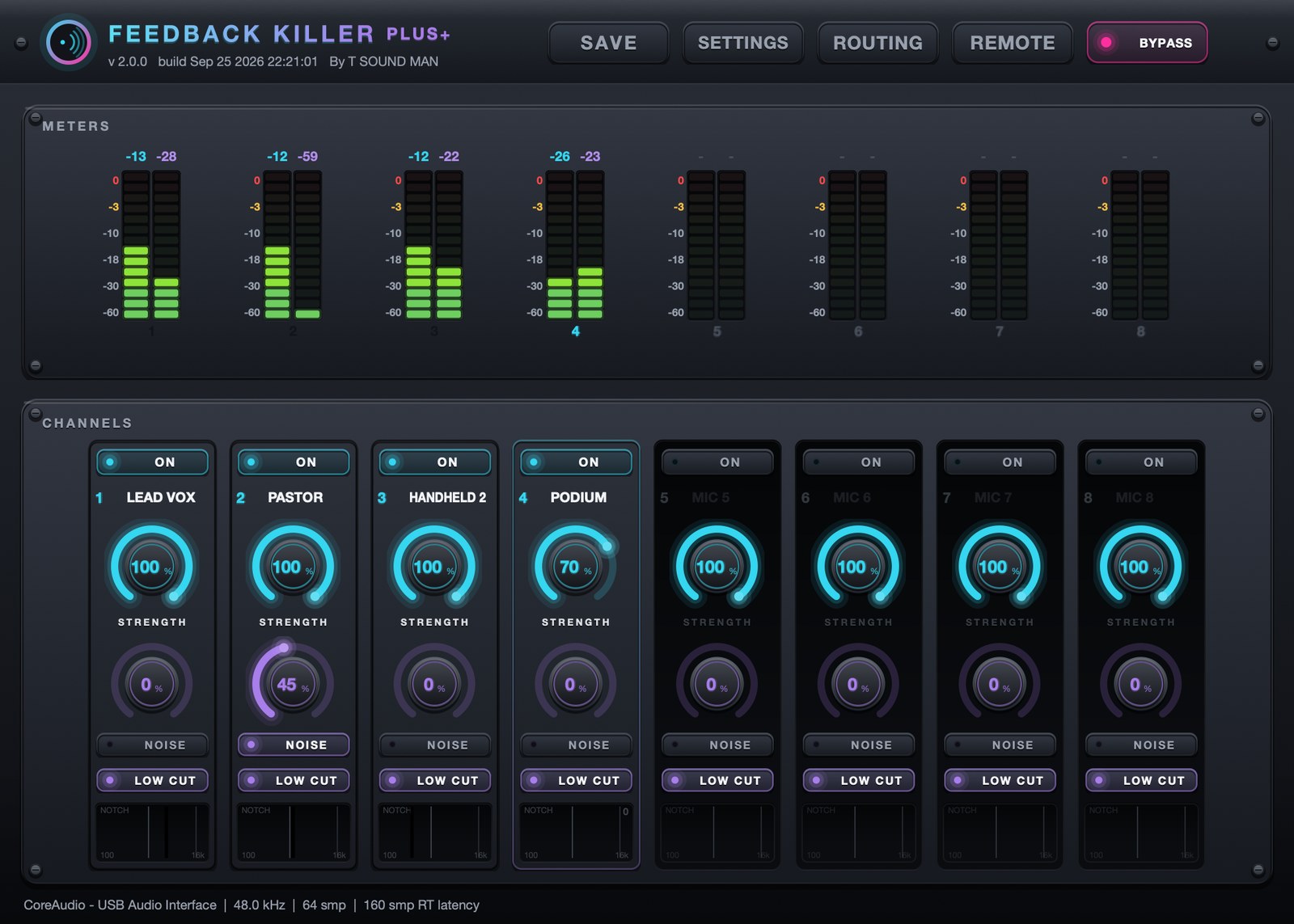
What is on the screen
- SAVE — save the whole rack to a file (Save rack as...) or open a saved one (Load rack...).
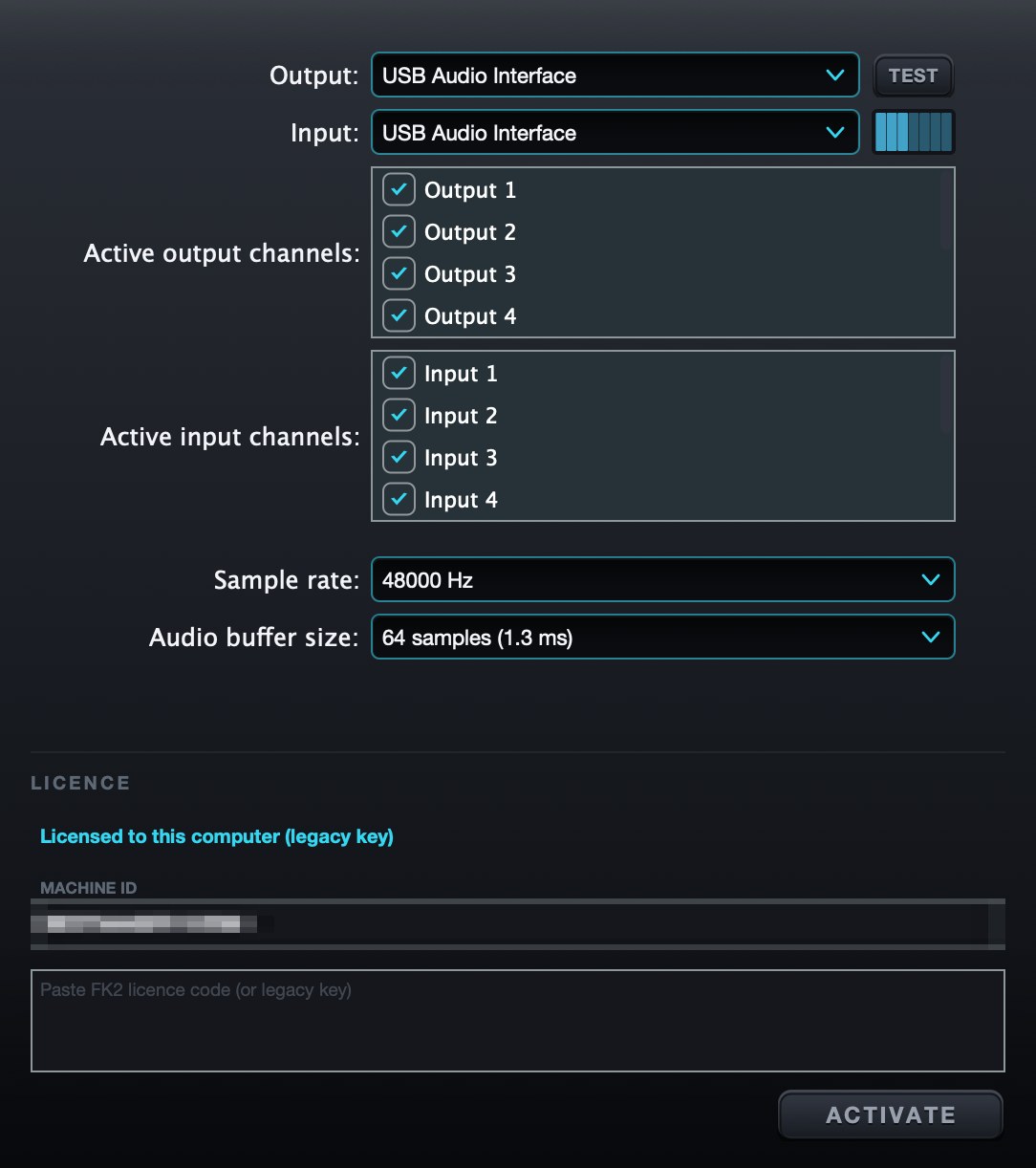
- SETTINGS — audio interface, sample rate, buffer size and licence.
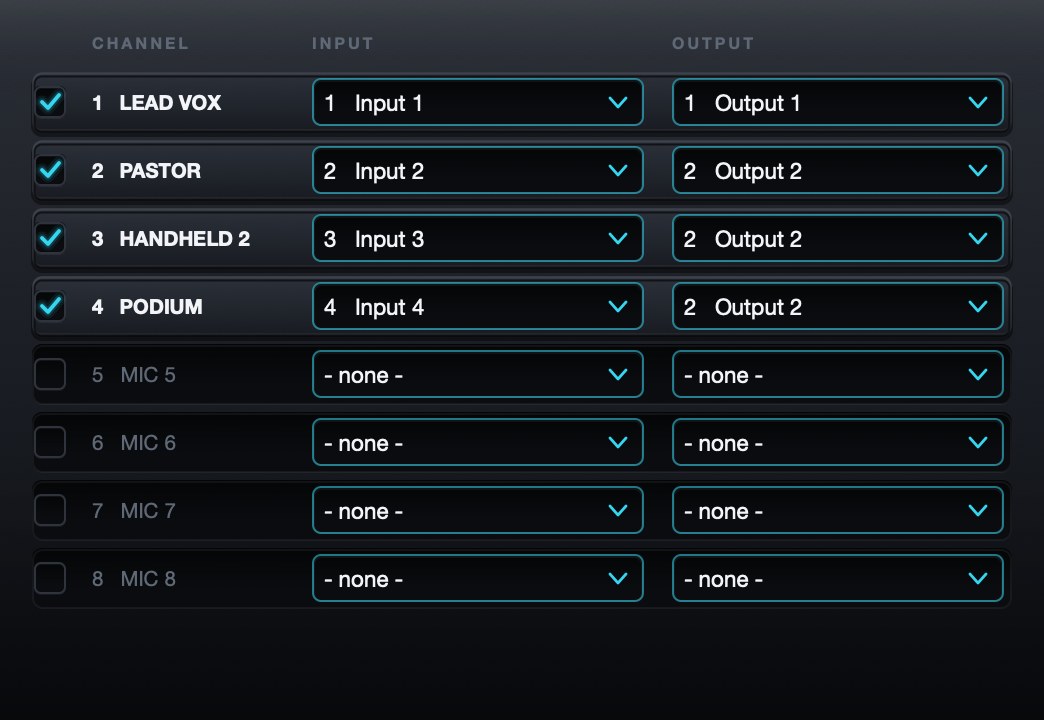
- ROUTING — which input each channel listens to and which output it sends to.
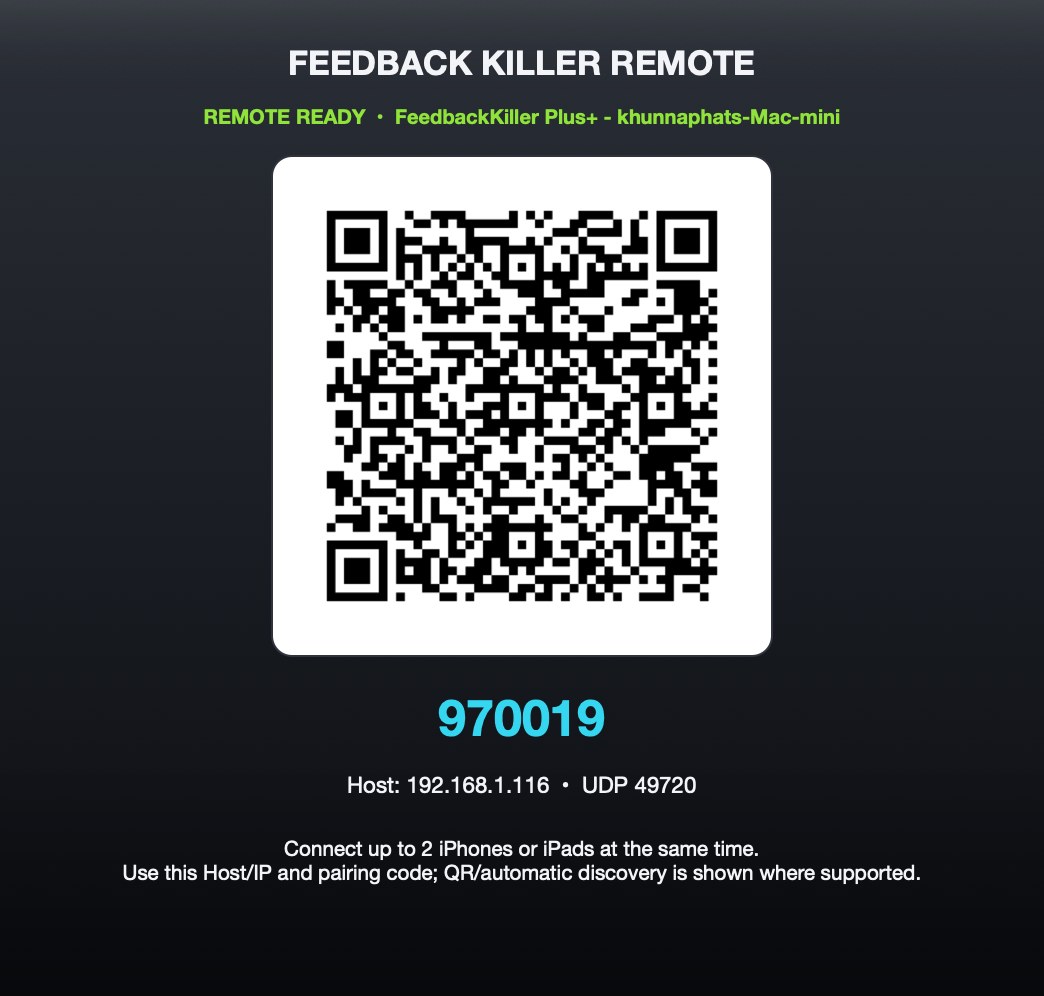
- REMOTE — QR code and pairing code for the Remote app on iPhone/iPad.
- BYPASS — passes every channel straight through at once (with a smooth crossfade, no clicks).
- METERS — IN (left) and OUT (right) for every channel, with dBFS readouts on top. When a channel number below its meter turns into a pink badge, that channel is suppressing feedback.
- ON — enables the channel. Disabled channels are dimmed.
- Channel name — double-click to rename (LEAD VOX, PASTOR, ...).
- STRENGTH — suppression strength, 0–100% (default 100%). Double-click to reset to 100%.
- NOISE (knob) — noise reduction amount. Double-click to reset to 0%.
- NOISE (switch) — turns noise reduction on or off for this channel.
- LOW CUT — removes lows (wind, stage rumble). On by default.
- NOTCH — a 100 Hz–16 kHz map of where feedback is being cut, with the number of active notches.
- Status bar — audio device, sample rate, buffer, latency, CPU and licence status.
First-time setup
- Connect your audio interface and open the app.
- Click SETTINGS: pick your interface as Output and Input, tick the channels you use, set the sample rate (48000 Hz) and the lowest buffer that plays without glitches (usually 64–128 samples). On Windows choose the ASIO driver.
- Click ROUTING: tick the channels you need and choose each Input (mic) and Output (return to the mixer).
- Name each channel after its microphone.
- Bring the mics up as normal — feedback is suppressed automatically. For background noise, switch NOISE on and raise the knob gradually.
- Use SAVE → Save rack as... to keep the setup for next time.
Connecting to a mixer
- Send each mic from the mixer's direct out / insert send into the audio interface.
- Return the processed signal from the interface outputs to the mixer (insert return or a new channel).
- The app adds no latency of its own; all of it comes from the audio interface and buffer size (shown in the status bar).
- The 8 channels are spread across several CPU cores, so the computer stays light and the audio does not crackle.
- If the audio driver stops by itself mid-show (an ASIO reset, for example), the app reopens it within about 2 s; there is no need to choose the interface again in SETTINGS.
Control from iPhone / iPad
Click REMOTE to show a QR code and 6-digit pairing code. Open FeedbackKiller Remote on an iPhone or iPad on the same Wi-Fi and scan the code. Up to 2 devices can connect at once (see the FeedbackKiller Remote manual).
On Windows, the first time the app starts, click Allow if Windows Firewall asks — otherwise the Remote app cannot connect.
Bypass
Click BYPASS to send every channel straight through immediately, for example to check whether a sound problem comes from the processing.
Trial and licence
- Full function for 14 days; the bottom-right of the status bar shows the days left.
- After 14 days feedback suppression stops, but NOISE, LOW CUT and BYPASS keep passing audio as normal.
- Enter your key in SETTINGS under LICENCE: paste the key (it starts with FK2-) and click ACTIVATE.
If activation fails
- Paste the key with Ctrl+V (Mac: Cmd+V) or right-click the box and choose Paste. Spaces and hidden characters that LINE or e-mail add to a copied key are removed by the app automatically.
- Could not connect to the licence server — check the internet connection, then update to the latest version. New versions activate through tsoundman.com, which every network can reach.
- Invalid licence code — the key must start with FK2- and belong to this product (a key for one product does not work in another). If it still fails, send a screenshot on LINE and we will check it or issue a new key.