A VST3 plug-in host for live sound on Windows and Mac — a stage-ready replacement for a DAW. Each channel takes audio from the interface, runs it through up to 6 plug-ins and sends it out. Add as many channels as you need, save the whole rack as a session, and control it from an iPad with Signal Rack Remote.
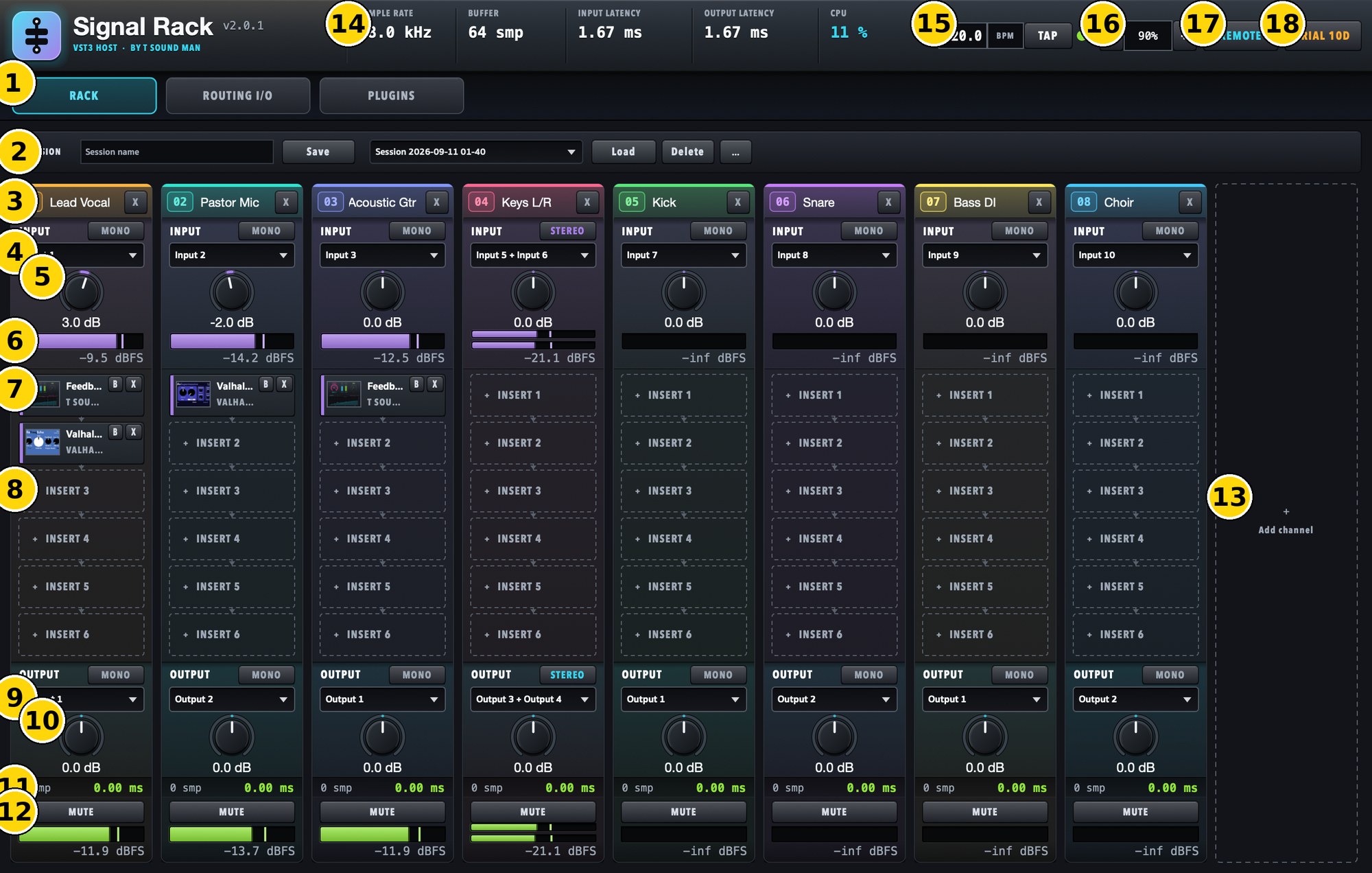
The RACK page
- Tabs — RACK (the plug-in rack), ROUTING I/O (audio device and routing), PLUGINS (plug-in list).
- SESSION — type a name and click Save; pick a session and click Load; Delete removes it. ... saves to or opens an .srack file anywhere. The SCENES button next to it stores and recalls per-song settings (see Scenes below).
- Channel header — number, name (click to rename; press Enter to keep the new name, Esc to cancel) and X to delete the channel.
- INPUT — the input channel. MONO/STEREO switches between a single channel and a stereo pair. A stereo pair always starts on an odd channel (1+2, 3+4, ...): channel 2 switched to STEREO uses the 1+2 pair.
- Input gain — level before the plug-ins, ±24 dB.
- Input meter — level after the input gain (dBFS). Stereo channels show two bars.
- Insert slot — double-click to open the plug-in window, B bypasses it, X removes it. Hover to see a preview of the plug-in. Right-click for the menu: open the window, Bypass, iPad Quick Controls, Copy / Paste and Remove. A Q2 tag on the slot means two Quick Controls are chosen.
- Empty slot — click to choose a plug-in (grouped by maker). Right-click to paste a copied plug-in. Drag plug-ins to another slot or channel.
- OUTPUT — the output channel and MONO/STEREO.
- Output gain — level after the plug-ins, ±24 dB.
- Channel latency — how many samples / ms the plug-ins on this channel add.
- MUTE and output meter.
- Add channel — adds a new channel.
- System readouts — sample rate, buffer, input/output latency and CPU.
- BPM / TAP — click the number to type a BPM, or tap TAP in time. TAP flashes on every beat. Used by tempo-synced delays and effects.
- Zoom — − / + scale the whole window.
- REMOTE — shows the QR code for Signal Rack Remote on iPad.
- Licence badge — trial days left; click to enter a licence key.
First-time setup
- On the PLUGINS tab click Scan plugins once; the list is remembered.
- On ROUTING I/O choose your audio interface, sample rate and buffer.
- Back on RACK, name the channels and choose each INPUT and OUTPUT.
- Click an INSERT slot to add a plug-in, double-click it to adjust.
- Name the session and click Save.
The ROUTING I/O page
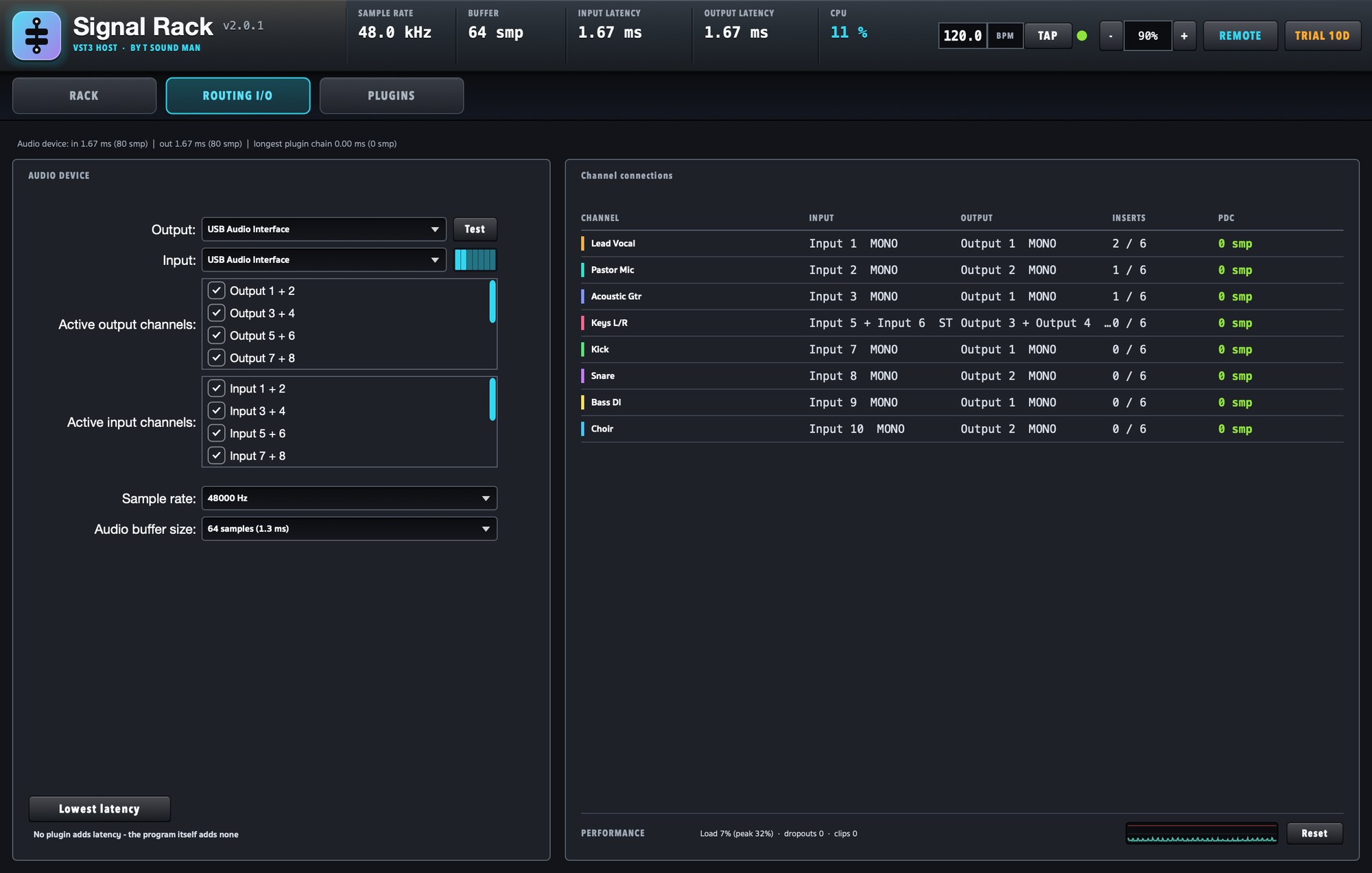
- AUDIO DEVICE — output and input device, active channels, sample rate and buffer.
- Lowest latency — sets the buffer as small as the driver allows. If the sound starts glitching, step the buffer back up one notch.
- Channel connections — every channel's input, output, number of plug-ins and plug-in latency (PDC).
- PERFORMANCE — system load, dropouts and clips (signal over 0 dBFS). Reset clears the counters.
The PLUGINS page
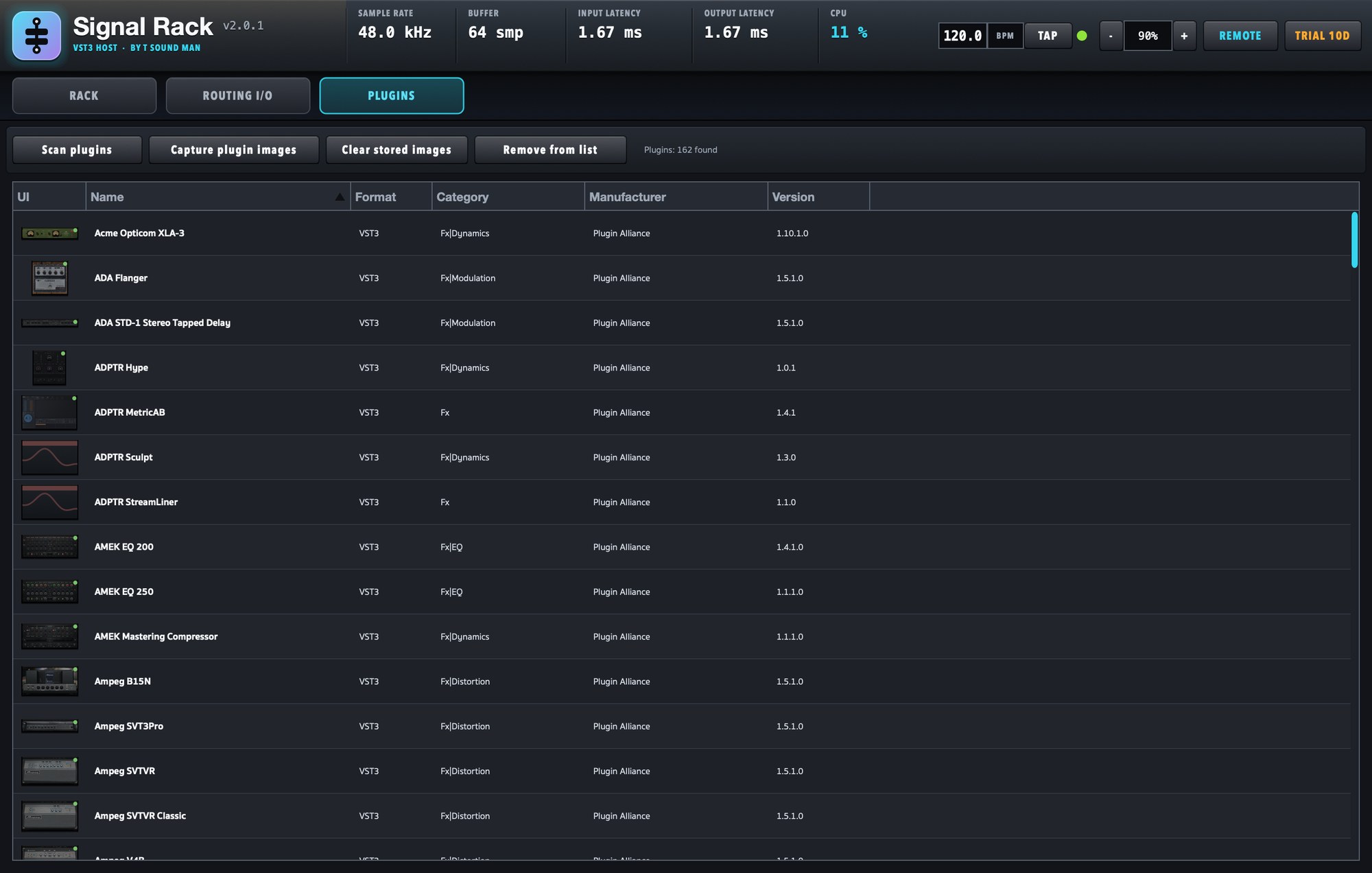
- Scan plugins — finds the VST3 plug-ins installed on the computer, in both the system and user folders (Mac: /Library and ~/Library/Audio/Plug-Ins/VST3 · Windows: C:\Program Files\Common Files\VST3). After installing a new plug-in, choose Options… → Scan for new or updated VST3 plug-ins.
- Waves plug-ins — a WaveShell file holds hundreds of plug-ins and takes 5–20 minutes to scan. The scan window may say "Scan complete" first, but the scanner keeps going in the background (the bottom of the PLUGINS page says still scanning). You can close Signal Rack meanwhile; Waves appears in the list at the next start. A plug-in that really hangs is skipped after 90 s.
- Capture plugin images — stores a picture of each plug-in for the list and the insert slots.
- Clear stored images — deletes the stored pictures.
- Remove from list — removes the selected plug-in from the list.
- Click a column header to sort by name, category or maker.
Scenes: settings per song
A scene is a snapshot of the mix. Set up each song or part of the show in advance and recall it with one click (up to 64 scenes per session).
- A scene stores: input and output gains, every channel's MUTE, plug-in bypass, every setting of every plug-in, and the BPM.
- A scene does not change: INPUT/OUTPUT routing or which plug-ins are loaded. If a slot now holds a different plug-in, that slot's settings are not recalled.
- Click SCENES in the top bar to see the list. Click a name to recall it straight away; the button shows the scene in use.
- Save the mix as a new scene... — name it and store the current mix as a new scene.
- Update "scene name" with the mix now — overwrite the scene in use with the current mix.
- Move up / Move down, Rename, Delete — order, rename and remove scenes.
- ◀ / ▶ beside SCENES — recall the previous / next scene.
- Hot scene buttons 1–8 — recall the scene, then SCENES → Put "name" on a hot button. The button of the scene in use lights up.
- What "name" recalls (scope)... — choose what this scene changes (gains, MUTE, plug-ins, tempo) and on which channels, e.g. a scene that changes the band's plug-ins but never the speech mics.
- Recall safe (never changed by any scene)... — channels or settings no scene changes for the whole show (set once per session).
- Scene safe per plug-in — right-click the plug-in → Scene safe: scenes leave that plug-in as it is.
- Notes for "name"... — notes for the song (e.g. "capo 2"), shown when you point at SCENES or a hot button.
- Every time a scene is stored or recalled, the session is backed up automatically (if anything changed).
- Scenes are saved with the session, so press the session's Save as well.
- Recall scenes from the iPad in the SCENES tab of Signal Rack Remote.
Channel menu (click the channel number)
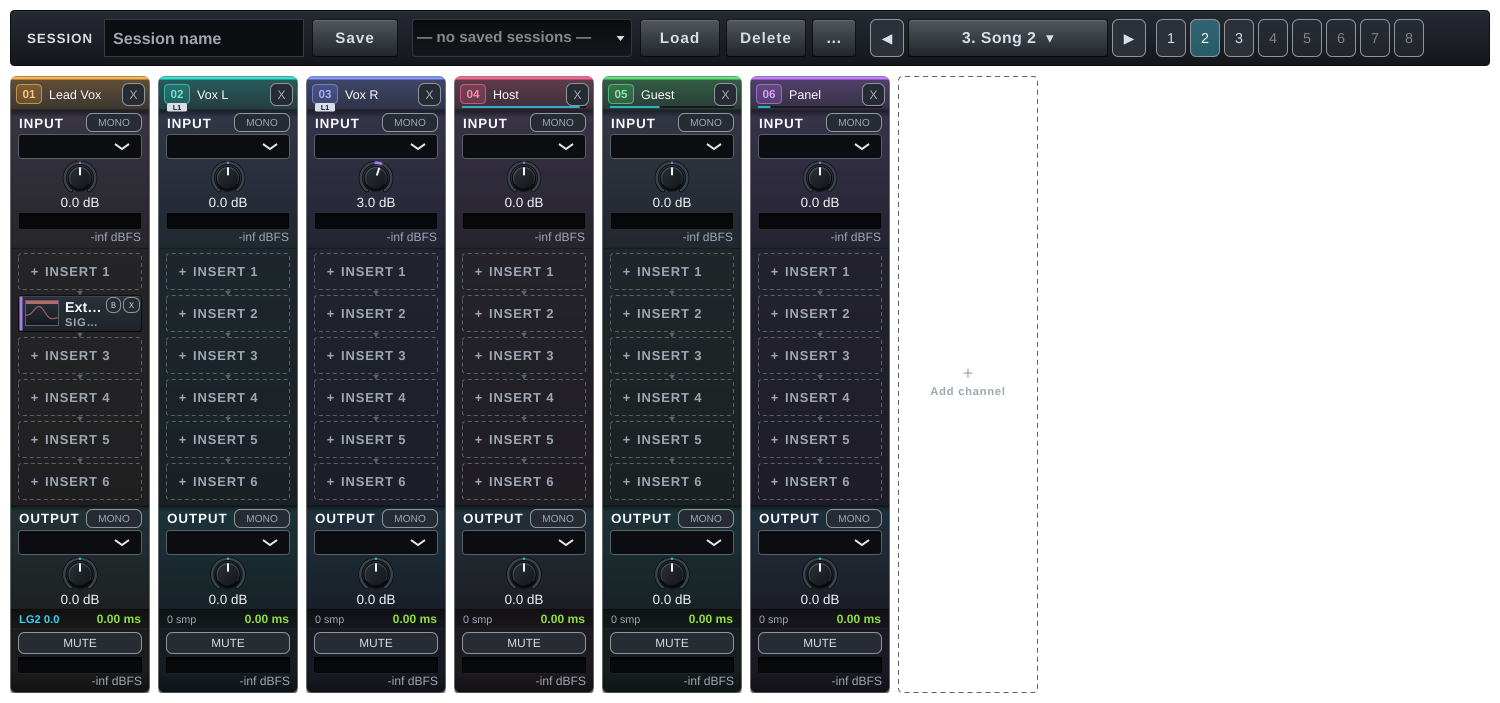
Click the channel number badge (e.g. 01) in a channel's header:
- Link group — put the channel in group 1–8. Turn a gain or press MUTE on one channel and the others in the group move by the same number of dB, keeping their offsets (6 and 9 dB become 8 and 11 dB). Plug-in settings are not linked. Linked channels show L1–L8 under the number. Switch link off pauses a group without taking channels out of it.
- Auto Mix (speech mics) — see Auto Mix below.
- Copy channel / Paste channel — copies a whole channel (plug-ins with their settings, gains, MUTE, delay) onto another. The target keeps its own name, INPUT/OUTPUT and link group.
- Save channel preset... / Load channel preset / Delete channel preset — store a whole channel as a preset for any session, e.g. "Lead vocal", and load it into any channel.
Auto Mix for speech mics
For meetings, seminars, ceremonies and panel tables with several mics: the mic being talked into comes up and the quiet ones go down by themselves. The total stays as loud as one open mic, so feedback and room sound do not grow with the number of mics.
- Click the number of each speech mic's channel → Auto Mix (speech mics) → Auto Mix A (two groups, A and B).
- A thin cyan bar under the channel header shows how open that mic is (full = fully open).
- Weight (priority) — makes a mic more or less sensitive (−9 to +9 dB); it does not make it louder.
- Chair mic — the chairperson / host mic: while it talks, the other mics of the group go down another 12 dB.
- Switch this Auto Mix group off — pauses the group; every mic in it goes back to normal.
- Auto Mix works after the plug-ins and the output gain, so EQ and compression in the channel work as usual.
External insert: outboard hardware
Put outboard gear (a hardware compressor, EQ or effect) into a channel's chain like a plug-in.
- Click an empty INSERT slot → External insert (hardware send / return).
- Double-click it and set SEND (the sound-card output wired to the unit) and RETURN (the input it comes back on). STEREO switches to a stereo pair.
- Set ROUND-TRIP LATENCY to the time the sound takes out and back (the sound card's input + output latency). It is counted in the latency groups.
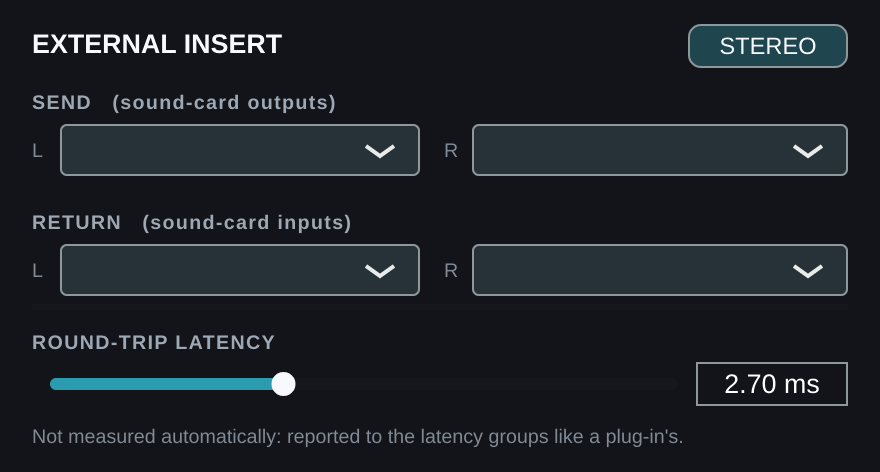
- No SEND chosen: the sound passes straight through. No RETURN chosen: the channel carries on with its own signal.
- It moves, copies, bypasses and saves with the session like a plug-in.
Templates and live safety
- Templates — ... → Save as template... stores the session as a template (without its INPUT/OUTPUT choices, so it moves between computers); New session from template starts a new show from one.
- LOCK — top bar: guards against accidental clicks during a show (plug-in windows and the iPad still work). Click LOCKED to unlock.
- After an unexpected close (a plug-in crash, a power cut) the next start offers to open the session without the plug-in that caused it, open the newest backup, or start empty.
- Automatic backups — every minute when something changed; the last 30 are kept.
- A plug-in that is not installed stays in its slot with its settings (MISSING). Click it to Try again, Replace with another plugin... or remove it.
- Plug-in presets — right-click a plug-in → Presets: save / load that plug-in's settings.
Quick Controls for iPad
Choose up to 4 controls per plug-in to adjust from the iPad, e.g. a reverb's Mix or a delay's Feedback.
- Right-click the plug-in in its INSERT slot and choose iPad Quick Controls.
- Tick the parameters you want (plug-ins with many parameters are grouped 40 at a time). Clear all removes them.
- They appear in the iPad's QUICK tab in the right form: continuous parameters as knobs, on/off parameters as buttons, and lists as options to tap.
- Quick Controls move and copy with the plug-in and are saved with the session.
Control from iPad
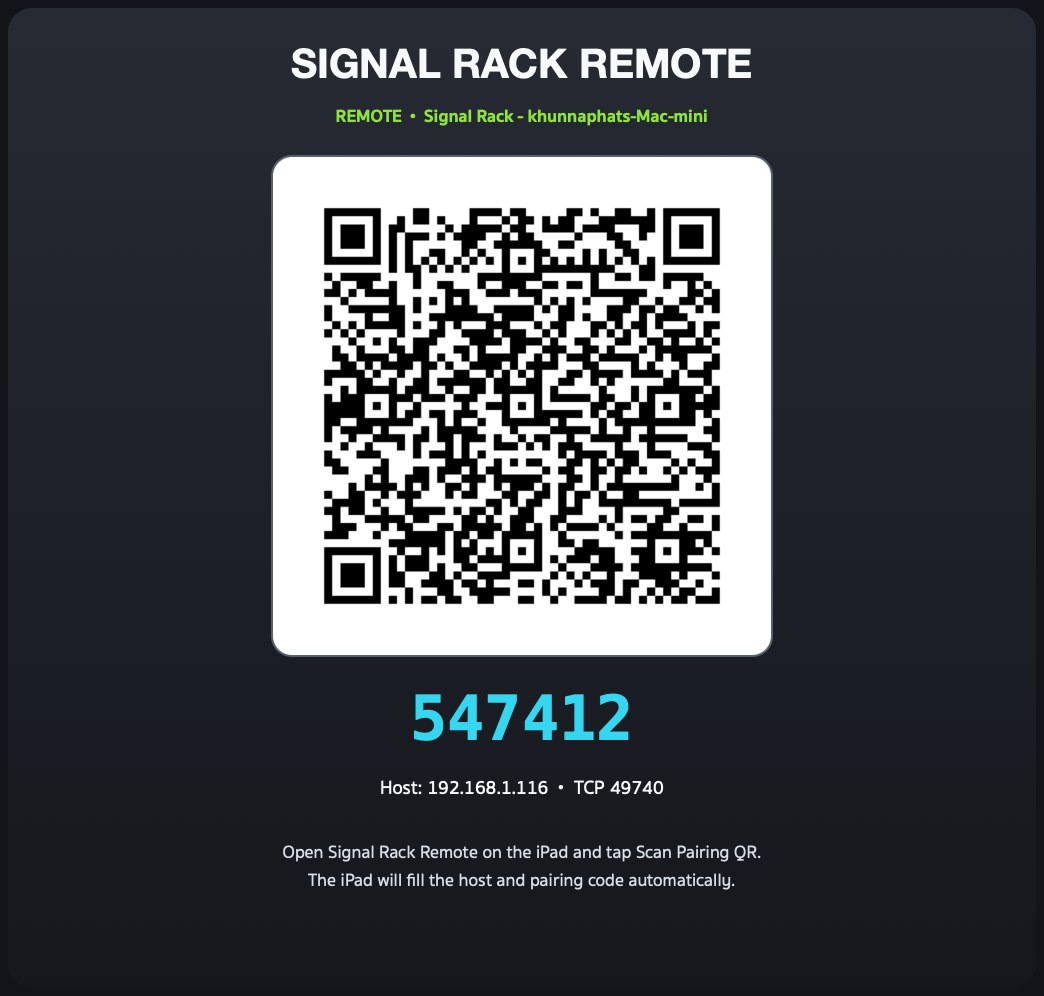
Click REMOTE to show a QR code and 6-digit code. Open Signal Rack Remote on an iPad on the same Wi-Fi and scan it (see the Signal Rack Remote manual).
Latency and delay
Signal Rack adds no latency of its own — it processes each block as soon as the audio device delivers it. A plug-in that needs to delay audio (a linear-phase EQ or a look-ahead limiter, for example) only delays the channel it is on. Most of the latency shown at the top comes from the audio interface, so a low-latency interface and a small buffer give the lowest total. Click a channel's latency row (above MUTE) to:
- Set the output delay... — delay the output by 0–1000 ms, e.g. to time-align a speaker further away with the main ones (1 ms ≈ 34 cm).
- Latency group 1–4 — channels in one group are delayed to match the slowest in the group (auto) or a latency you set (fixed latency...). Use it when one source is split over several channels that are summed later. The row shows LG1 etc. (sessions from older versions with ALIGN on come in as Latency group 1).
Trial and licence
- Full function for 14 days.
- After 14 days the app still opens and runs your rack, but the rack cannot be edited until a key is entered.
- Click the licence badge at the top right, paste your key and click Activate.
If activation fails
- Paste the key with Ctrl+V (Mac: Cmd+V) or right-click the box and choose Paste. Spaces and hidden characters that LINE or e-mail add to a copied key are removed by the app automatically.
- Could not connect to the licence server — check the internet connection, then update to the latest version. New versions activate through tsoundman.com, which every network can reach.
- Invalid licence code — the key must start with FK2- and belong to this product (a key for one product does not work in another). If it still fails, send a screenshot on LINE and we will check it or issue a new key.